Common Camera Settings - LG G Pad™ 8.3
Here's info on common camera settings (e.g., storage, front / rear camera, etc.) for your LG G Pad 8.3.
Shot Mode
- From a Home screen, tap theCamera icon
(at the bottom).
- TapModeto select an option:
- Normal
- Dynamic tone (HDR)HDR (High Dynamic Range) - Combines photos or videos taken at different exposures for one optimal photo or video.
- Panorama
- VR panorama
- Continuous shot
- Beauty shot
- Time catch shot
- Sports
- Night
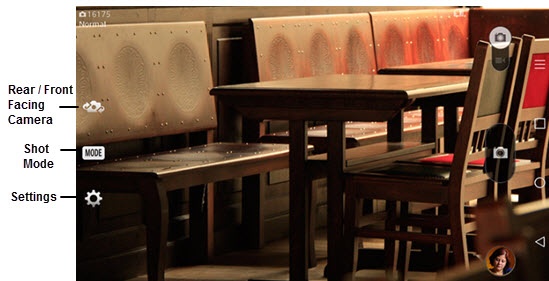
Rear or Front Facing Camera
- From a Home screen, tap theCamera icon
- Tap theCamera Facing iconto switch between rear and front-facing camera.

Volume Key
Allows the Volume button (located on the right edge of the device) to be used for camera functions.
- From a Home screen, tap theCamera icon
- Tap theSettings icon.
- Tap theVolume key iconto select an option (Capture, Zoom).


Image Size
- From a Home screen, tap theCamera icon
- Tap theSettings icon.
- TapImage size.
- Select an option:
- 5M
- W4M
- 1M

Timer
- From a Home screen, tap theCamera icon
- Tap theSettings icon.
- Tap theTimer icon.
- Select an option:
- Off
- 3 sec
- 5 sec
- 10 sec

Storage Location
- From a Home screen, tap theCamera icon
- Tap theSettings icon.
- Tap theStorage iconto select an option:
- Internal storage
- SD card