Samsung Galaxy Watch - Install System Updates
Here's how to check for and install software updates on your Galaxy Watch.
Update from the Galaxy Watch
Option only available when active as a standalone device.
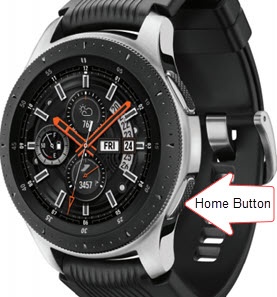
- From the watch screen, press theHome buttonto open the apps screen.
- Navigate:.SettingsGeneral
- TapUpdate watch software.
- If prompted, review the mobile data message then tap theCheckmark icon
to accept.
- If an update is available, tapDownload.If prompted with 'The latest update has already been installed', tapOK. No update is necessary.

Update from an Android Smartphone
- Open the Galaxy Wearable app
.
- Tap theHome tab(lower-left).
- TapWatch software update.
- TapDownload and install.If desired, tapAuto download over Wi-Fito turn on
or off
.
- TapInstall now.If 'Your software is up to date' appears, the Watch is up to date.
- From the 'Update watch software' screen, tapInstall now.
- From the 'Update watch software' prompt, tapOK.The software update process may take several minutes to complete.
Update from an Apple iPhone
- From your connected Apple iPhone, ensure the Galaxy Wearable app is installed.
- Open the Samsung Galaxy Watch (Gear S) app
.
- From the Home tab, tapAbout watch.
- TapSoftware information.
- If an update is available, tapInstall.