Samsung Galaxy Tab A (8.0) - Common Camera Settings
Here's info on common camera settings (e.g., timer, front /rear camera, etc.) for your Galaxy Tab A (8.0).
For additional info on camera settings, refer to the 'Camera and video' section of the user guide.
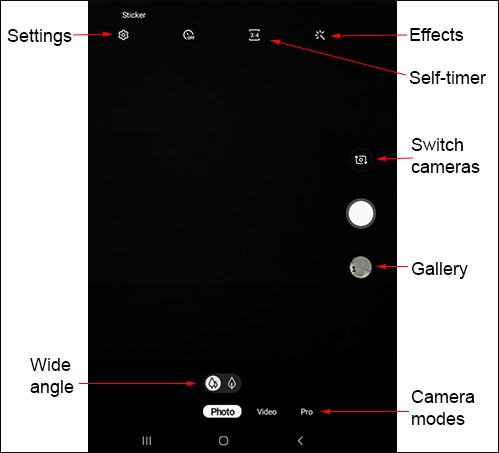
Settings
- From a Home screen, tap theCamera icon
(lower-right).
If unavailable, swipe up or down from the center of the display then tapCamera. - TapSettings
.
- Select an option:
- Picture resolution
- Rear picture size:
- 4:3 (5.0 MP) 2592x1944
- 16:9 (3.7 MP) 2560x1400
- 1:1 (3.7 MP) 1920x1920
- Front picture size:
- 4:3 (2.0 M) 1616x1212
- 16:9 (1.4 M) 1600x900
- 1:1 (1.1 MP) 1072x1072
- Video resolution
- Rear video size:
- 16.9 FHD 1920x1080
- 4:3 VGA 640x480
- Front video size:
- 16.9 HD 1280x720
- 4:3 VGA 640x48
- Shooting Methods
- TapShooting methods.
- TapPress Volume key tothen select an option (e.g., Take picture or record video, Zoom, etc.).
- Tap any of the following options to turn on
or off
:
- Floating Shutter button
- Tap screen
- Show palm
Self-timer
- From a Home screen, tap theCamera iconIf unavailable, swipe up or down from the center of the display then tapCamera.
- Tap theSelf-timer icon
.
- Select an option:
- Off
- 2 secs
- 5 secs
- 10 secs
Camera Effects
- From a Home screen, tap theCamera iconIf unavailable, swipe up or down from the center of the display then tapCamera.
- Tap theEffects icon
.
- Swipe left to choose a preset effect (e.g., Warm, Cool, Lolli, etc.).
Wide Angle
- From a Home screen, tap theCamera iconIf unavailable, swipe up or down from the center of the display then tapCamera.
- Tap theWide angle iconto change between Ultra wide angle
and Wide angle
.
Camera Mode
- From a Home screen, tap theCamera iconIf unavailable, swipe up or down from the center of the display then tapCamera.
- To change the camera mode, swipe left or right to select an option:
- PhotoCapture a picture.
- VideoCapture video.
- ProManually adjust the ISO sensitivity, white balance, and color tone.
- PanoramaTap the Camera button then pan slowly in one direction.
- Continuous shotTap and hold theCamera button icon
to continuously take pictures.
Switch Cameras
- From a Home screen, tap theCamera iconIf unavailable, swipe up or down from the center of the display then tapCamera.
- Tap theCamera Facing icon
to switch between rear and front-facing camera.