One Talk CP920 IP Conference Phone Call Recording via USB Storage
One Talk CP920 IP Conference Phone
Call Recording via USB StorageYour One Talk CP920 IP conference phone can record audio during active two-party or conference calls using the phone's internal memory or a USB flash drive.
Before you begin
Only one USB device (e.g., flash drive, Bluetooth or Wi-Fi adapter, etc.) can be used at a time.
Up to 12 hours of audio can be recorded in one file.
By default, recorded audio files are saved to the internal SD card but can be saved to a USB flash drive if one is connected to a USB port on the phone.
Recorded files are saved first to the USB flash drive if one is connected, then to the internal SD card as storage space fills up.
Recording can only begin during an active call.
If on a conference call, all conference participants are recorded. If one of the participants holds the call, only that participant is recorded. If a conference call is placed on hold, the recording is paused; recording resumes when the conference call is resumed.
Steps
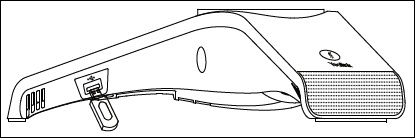
- Insert a USB flash drive into the USB port on the phone to record active calls.The device displays a message acknowledging that a flash drive was inserted.
- To record call audio:
- While on a call, navigate: .
- PressStop RECto stop recording. The recorded file is saved to the flash drive.If you end a call during recording, the recorded file is saved automatically.To pause recording, navigate: ; pressRe RECto resume recording.
- To play recorded calls on the desk phone:Calls are recorded in .WAV format and can also be played back by plugging the USB drive into a computer.
- Navigate: .
- SelectBrowse Recordings.
- Select the desired recording then pressPlay.
- To view the used and remaining space on your USB drive, selectStorage Media Propertiesfrom the USB Record menu.