KYOCERA DuraForce PRO 2 - Compose and Send Email Message
Here's how to create and send an email message from your DuraForce PRO 2.
- From a Home screen, tap theGmail Icon
.
If unavailable navigate:Apps icon>
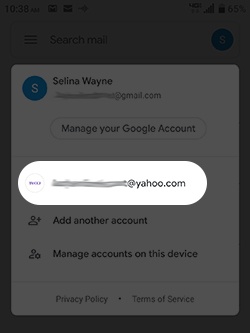
Google folder>Gmail. - If necessary, to get to the desired account:
- Tap theAccount icon
(upper-right).
- Tap the appropriate email account.
- From an Inbox, tapCompose(lower-right).
- From the Top field, enter the recipient's email address.As the recipient's email address is entered, a list of matching contacts may appear and can be selected at any time.
- From the Subject field, enter a subject.
- From the Compose email field, enter a messageTo add an attachment:
- Tap theAttach icon
(at the top).
- TapAttach file.
- Navigate to then tap a file type (e.g., Pictures, Video, Audio, etc.).
- Tap theSend icon
(upper-right).