Samsung SmartThings Tracker - Set Up Device (New ThingSpace Portal Account)
Here's how to set up your Samsung SmartThings Tracker with a new ThingSpace Portal account.
Prior to setting up the Samsung SmartThings Tracker, the SmartThings app must be downloaded onto the device.
- For Android® users, download the app from the Google Play™ .
- Open the SmartThings app
then tap
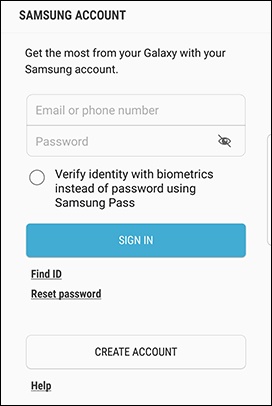
Sign in. - From the 'Samsung Account' screen select whichever applies:
- First time users, tapCreate Account.
- For existing users, enter the Samsung account info then tapSign in.
- To continue, review the legal info then tapNext(bottom-right).
- From the Home screen, tap theAdd icon
(upper-right) then tap
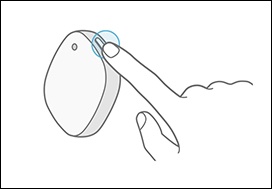
Add device. - From the SmartThings Tracker, press thePower buttonto turn on.
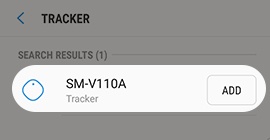
- From the 'Add device' screen, tapScan(upper-right) then select tracker.It may take some time to connect tracker to your phone. The tracker is ready when the light turns blue.
- To continue pairing, tapStart.
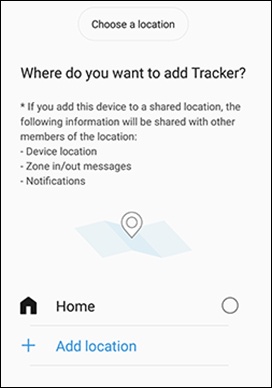
- From the 'Where do you want.." screen, set a location then tapNEXT(lower-right):
- TapHometo set current location as default.
- To add a location, tapAdd locationthen follow the on-screen prompts.
- From the 'Select a room in Home' screen, select a 'room' for tracker then tapNEXT(lower-right).It may take some time to connect tracker to your phone. The tracker is ready when the light turns blue.
- When the light turns blue, press and hold thePower button.
- Choose a location:
- TapHometo set current location as default.
- To add a location, tapAdd locationthen follow the on-screen prompts.
- TapNext(bottom-left).It may take some time to connect your Tracker to your phone. The tracker is ready when the light turns blue.
- When the light turns blue, press thePower buttononce to register the device.
- Wait for the Tracker to register to the Samsung account then tapACTIVATE.The app opens a new window to the ThingSpace Portal.
- To complete the plan purchase and activation, tapSign Up.
- Enter the requested info.
- To continue, review the Terms of Service and check the box then tapSign up.
- From the 'Welcome' screen, set up your security question then tapSet answer and register my device.
- TapAdd a delivery option.
- Select from the options then enter the requested info.
- TapSend passcode.
- Enter the one time passcode received then tapVerify.
- Once verified, tapContinue.
- To continue, review the Terms & Conditions and check the box then tapContinue.
- Review the plan info then tapContinue.
- From the 'Payment details' screen, enter the credit card info then tapContinue.
- To continue, review the Billing info, the Terms of Service and check the box then tapProcess Payment.
- Once the activation is submitted, tapContinue.It may take up to 5 minutes to register your Tracker. A notification is sent to phone upon completion.
- From the the 'What do you want to track?' screen, select an option then tapNext.
- To start using the tracker, tapStart.