Lenovo tab 4 8 PLUS - Common Camera Settings
Here's info on common camera settings (e.g., flash, timer, front / rear camera, etc.) for your Tab 4 8 PLUS.
For additional info on camera settings, refer to the Camera section of the user guide.
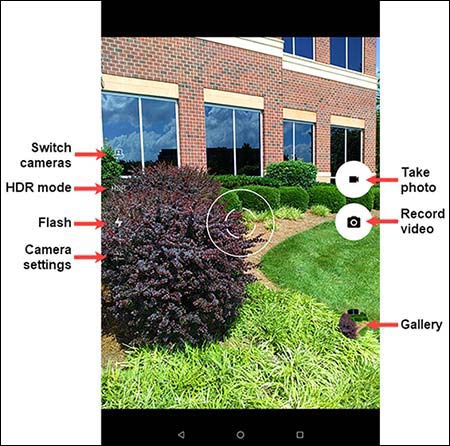
Switch Cameras
- From a Home screen, tap theCamera icon
(lower-right).
If unavailable, swipe up to display all apps then tapCamera. - Tap theSwitch camera iconto switch between rear and front-facing camera.

HDR Mode
HDR (High Dynamic Range) - Combines photos or videos taken at different exposures for one optimal photo or video.
- From a Home screen, tap theCamera iconIf unavailable, swipe up to display all apps then tapCamera.
- Tap theHDR iconto turn HDR mode on or off.

Flash
Flash is not available when using the front camera.
- From a Home screen, tap theCamera iconIf unavailable, swipe up to display all apps then tapCamera.
- Tap theFlash icon.
- Select an option:
- On
- Off
- Auto

Settings
- From a Home screen, tap theCamera iconIf unavailable, swipe up to display all apps then tapCamera.
- Tap theSettings icon.
- Select an option:
- GPS locationEnables photos to be tagged with the location where they were taken.
- StorageSelect Tablet or SD Card.SD Card is only available if an SD / memory card is inserted.
- Scene modeSelect any of the available options (e.g., Automatic, Landscape, etc.).
- Countdown timer
- Beep during countdownTap the switch to turn on
or off
.
- Exposure
- White balance
- Picture size (Front / Rear camera)Adjusts the photo resolution and file size.
- Video qualityAdjusts the video resolution and file size.
- Shutter sound
- Selfie mirrorOnly available when using the front camera
