Samsung Galaxy Book S - Insert / Remove SIM Card
Here's how to properly insert or remove a SIM card for your Galaxy Book S.
Instructions on inserting/removing your SIM can help with activation issues / errors, browser connection problems, and a blank or frozen screen.
Don't attempt to insert or remove the SIM card while your Galaxy Book S is powered on. Doing so may harm the SIM card and/or the device.
- Ensure the device is powered off.
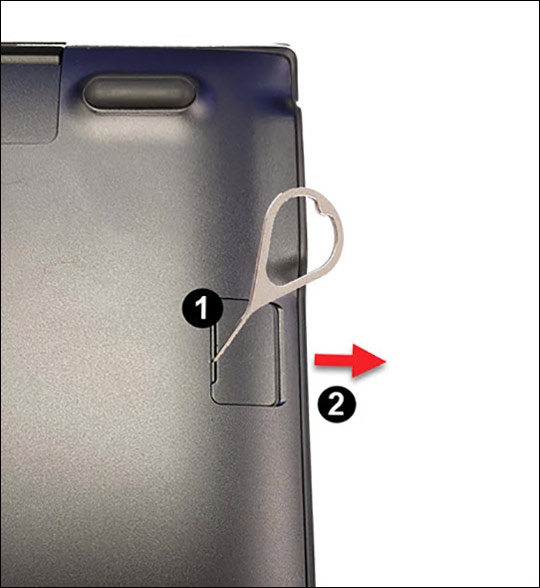
- From the bottom right edge of the device, remove the SIM / memory card tray.Utilize a paperclip (or similar tool) to unlock the tray by inserting it into the provided slit (figure 1) then remove the tray (figure 2).
- Do one of the following:
- Insert SIM cardEnsure the gold contacts facing down and insert the SIM card into the tray as shown.
- Remove SIM cardOnce the tray is removed, lift the SIM card from the tray.
- Reinsert the SIM / memory card tray into the device as shown.