Inseego Business Phone Connect - General Device Info
Here's general device info for your Business Phone Connect.
View Ports and Connectors
Don't place a USB-based device into the power connector port of the Business Phone Connect. Doing so may damage the Business Phone Connect and negate its warranty.
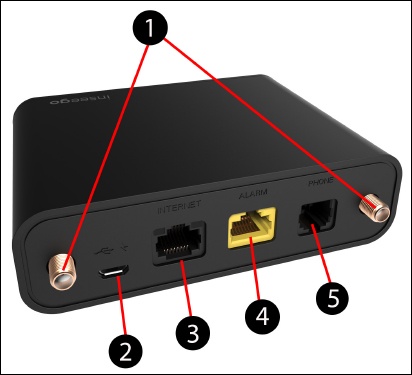
- External antenna connectors: jacks for two optional antennas in areas of low signal strength.
- Power connector port: USB port for the AC power adapter.
- Ethernet port: Ethernet port used for wired Internet connection.
- Alarm port: Dedicated port for a security alarm.Don't connect a phone or fax to the yellow port labeled Alarm. This port is intended for connecting a security system only. Inserting a phone line into this port causes the phone to stop working.
- Phone/fax port: The jack to connect either a phone or fax.
View Battery Compartment, Reset Button and Power / Status Indicator
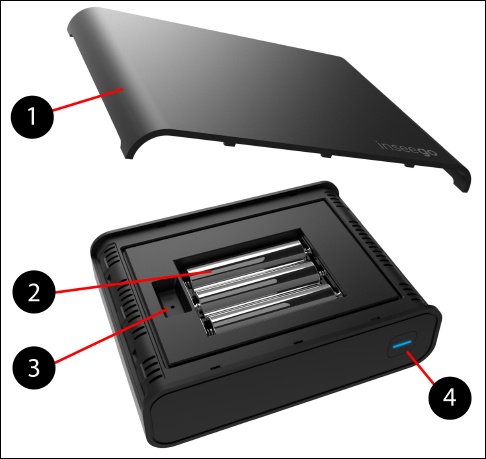
- Battery cover: Remove to access the batteries and/or reset button.
- Batteries: Three AA batteries in case of power failure.
- Reset button: Resets the device back to factory defaults.
- Power/status indicator: Turns device on and off; light indicates device status. See LED Status Indicators for more info.