Samsung Galaxy A01 - Common Camera Settings
Here's info on common camera settings (e.g., flash, camera mode, etc.) for your Galaxy A01.
For additional support, refer to the Camera section of the user guide.
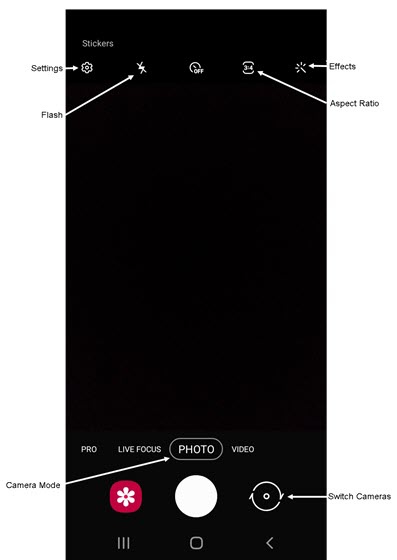
Settings
- From a Home screen, tapCamera
(lower-right).
If unavailable, swipe up or down from the center of the display then tapCamera. - TapSettings icon
(upper-left in portrait orientation).
- Select an option:
- Save selfies as previewedTap to turn on
or off
.
- Auto HDRTap to turn on or off.
- Grid linesTap to turn on or off.
- Location tagsTap to turn on or off.
- Shooting methodsTap to select an option.
- Settings to keepTap to select an option.
- Shutter soundTap to turn on or off.
Flash
- From a Home screen, tapCameraIf unavailable, swipe up or down from the center of the display then tapCamera.
- Tap theFlash icon
.
- Select an option:
- Off
- Auto
- On


Self-timer
- From a Home screen, tap theCamera iconIf unavailable, swipe up or down from the center of the display, tapCamerathen select an option:
- Tap theSelf-timer icon
.
- Select an option:
- Off
- 2 secs
- 5 secs
- 10 secs
Aspect Ratio
- From a Home screen, tapCameraIf unavailable, swipe up or down from the center of the display then tapCamera.
- Tap theAspect Ratio icon
.
- Select an option:
- 16.9
- Full
- 1:1
Filters
- From a Home screen, tap theCamera iconIf unavailable, swipe up or down from the center of the display, tapCamerathen select an option:
- Tap theFilters icon
.
- Swipe up or down to choose a preset effect (e.g., Grace, Grayscale, Sunshine, etc.).
Camera Mode
- From a Home screen, tap theCamera iconIf unavailable, swipe up or down from the center of the display, tapCamerathen select an option:
- To change the camera mode, swipe left or right to select an option:
- Photo: Capture a picture using your Galaxy S10 camera.
- Video: Capture a video using your Galaxy S10 camera.
- Pro: Manually adjust the ISO sensitivity, exposure value, white balance, and color tone.
- Panorama: Tap the Camera button then pan slowly in one direction.
- Live focus: Blur the background so your subject stands out in a picture.
Switch Camera
- From a Home screen, tap theCamera iconIf unavailable, swipe up or down from the center of the display, tapCamerathen select an option:
- Tap theCamera Facing icon
to switch between rear and front-facing camera.