Samsung Galaxy A21 - Common Camera Settings
Here's info on common camera settings (e.g., flash, timer, front / rear camera, etc.) for your Galaxy A21.
For additional info on camera settings, refer to the Camera section of the user guide.
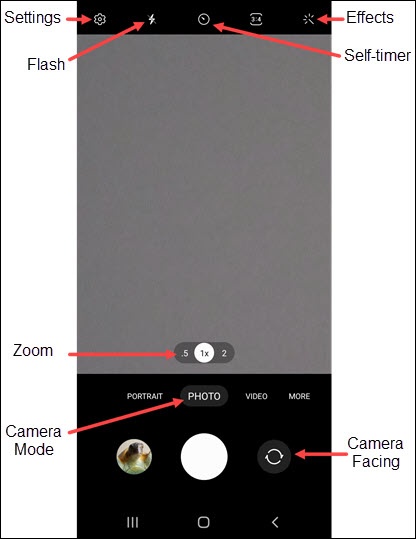
Settings
- From a Home screen, tap theCamera icon
(lower-right).
If unavailable, swipe up from the center of the display then tapCamera. - TapSettings
.
- Select an option:
- Shooting MethodsTapPress Volume key tothen select an option (e.g., Take picture or record video, Zoom, etc.).Tap any of the following options to turn on
or off
:
- Floating Shutter button
- Show palm
- Auto HDRTap to turn on or offHDR (High Dynamic Range) combines photos or videos taken at different exposures for one optimal photo or video.
- Grid linesTap to turn on or off
- Location tagsTap to turn on or off
- Save selfies as previewedTap to turn on or off
- Scan QR codesTap to turn on or off
Flash
- From a Home screen, tap theCamera iconIf unavailable, swipe up from the center of the display then tapCamera.
- Tap theFlash icon
.
- Select an option:
- On
- Off
- Auto
Self-Timer
- From a Home screen, tap theCamera iconIf unavailable, swipe up from the center of the display then tapCamera.
- Tap theSelf-timer icon
.
- Select an option:
- Off
- 2 secs
- 5 secs
- 10 secs
Camera Effects
- From a Home screen, tap theCamera iconIf unavailable, swipe up from the center of the display then tapCamera.
- Tap theEffects icon
.
- Swipe left to choose a preset effect (e.g., Grace, Sunshine, Vivid, etc.).
Zoom
- From a Home screen, tap theCamera iconIf unavailable, swipe up from the center of the display then tapCamera.
- Tap theZoom icon(e.g., 0.5x, 1x, etc.) then select preferred zoom level.

Camera Mode
- From a Home screen, tap theCamera iconIf unavailable, swipe up from the center of the display then tapCamera.
- Swipe left or right to select an option:
- PHOTO
- VIDEO
- PORTRAIT
- MORE
- PANORAMA
- PRO
- FOOD
- MACRO
Switch Camera
- From a Home screen, tap theCamera iconIf unavailable, swipe up from the center of the display then tapCamera.
- Tap theCamera Facing icon
to switch between rear and front-facing camera.