Samsung Galaxy A71 5G UW Insert or Remove SD / Memory Card
Samsung Galaxy A71 5G UW
Insert or Remove SD / Memory CardIf your Galaxy A71 5G UW is low on storage, use an SD card for extra space. Follow these steps to insert or remove it without losing data.
Before you begin
Ensure your Galaxy A71 5G UW is powered off before removing the SD / memory card.
Steps
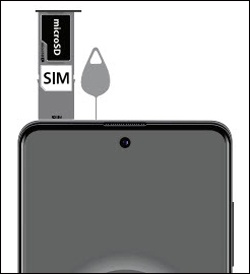
- From the top-left edge of the device with the display facing up, remove the card tray.Use the insertion / removal tool or a paperclip to unlock the tray by inserting it into the provided slot then remove the tray.
- Do one of the following:
- To insert an SD / memory card: With the gold contacts facing down, insert the SD / memory card into the tray.
- To remove an SD / memory card: From the bottom of the card, carefully lift to remove. To assist, use the opening on the opposite side of the tray to dislodge, using a fingernail or similar tool.
- Reinsert the card tray then press it in to lock it into place.