LG Stylo 6 - Common Camera Settings
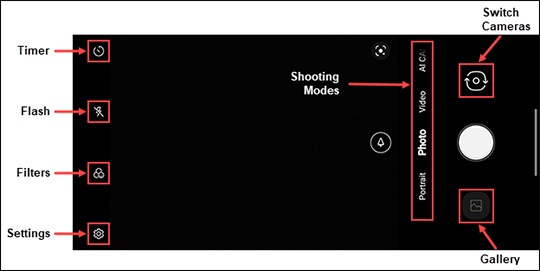
Here's info on common camera settings (e.g., flash, timer, front / rear camera, etc.) for your Stylo 6.
For additional camera support for your LG Stylo™ 6, refer to the Camera section of the user guide.
HDR Mode
HDR (High Dynamic Range) combines photos or videos taken at different exposures for one optimal photo or video.
- From a Home screen, tap theCamera icon
(lower-right).
- Tap theSettings icon
.
- TapHDRto select an option (On, Off or Auto).
Timer
- From a Home screen, tap theCamera icon
- Tap theTimer icon
.
A number displays showing the amount of time before a picture is taken.
Flash
- From a Home screen, tap theCamera icon
- Tap theFlash icon
to select an option (On, Off, Auto).
Switch Camera
- From a Home screen, tap theCamera icon
- Tap theCamera Facing icon
to switch between front and rear cameras.
Storage
- From a Home screen, tap theCamera icon
- Tap theSettings icon
- TapStorage.This option is only available if an SD / memory card is inserted.
- Select an option:
- SD Card
- Internal
Shooting Mode
- From a Home screen, tap theCamera icon
- Swipe through the shooting modes then tapMore(right of Manual Camera).
- Select the desired option (e.g., Manual Video, Flash Jump-Cut, etc.).
Filters
- From a Home screen, tap theCamera icon
- Tap theFilters icon
.
- Select the desired option (e.g., Urban, Vivid, Violet, etc.).