LG G Pad 5 10.1 FHD - Add / Remove Fingerprint Recognition
Here's how to set up and manage fingerprint recognition to unlock your LG G Pad 10.1 FHD.
For the fingerprint scanner on your LG G Pad 5™ 10.1 FHD to operate, hands must be clean and moisture-free.
- From a Home screen, navigate:.SettingsLock screen & security
- From the 'BIOMETRICS' section, tapFingerprints.
- Enter the current PIN, password, or pattern.
- Perform one of the following:
- First Time Setup
- Review the message then tapNEXT.
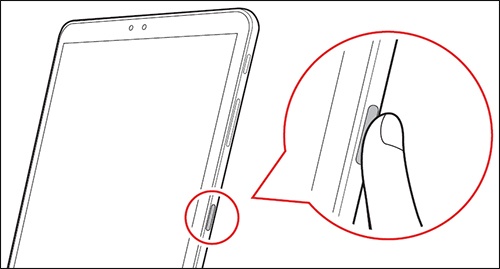
- Using on-screen prompts as a guide, tap thefingerprint sensormultiple times to scan your fingerprint.
- Once the fingerprint is added, tapOK.
- Add More Fingerprints
- TapAdd fingerprint.Up to 5 fingerprints can be registered on the device.
- Using on-screen prompts as a guide, tap thefingerprint sensormultiple times to scan your fingerprint.
- Once the fingerprint is added, tap OK if finished or ADD MORE to continue adding fingerprints.
- Remove Fingerprint(s)
- From the FINGERPRINTS section, tap theDelete icon
to the right of the fingerprint you wish to remove.
- TapDELETE.