Orbic Maui - Common Camera Settings
Here's info on common camera settings (e.g., flash, timer, front / rear camera, etc.) for your Orbic Maui.
If you need to adjust common camera settings (e.g., flash, filters, etc.) for your Orbic® Maui™ follow these step-by-step instructions.
For additional support, refer to the Camera section of the user guide.
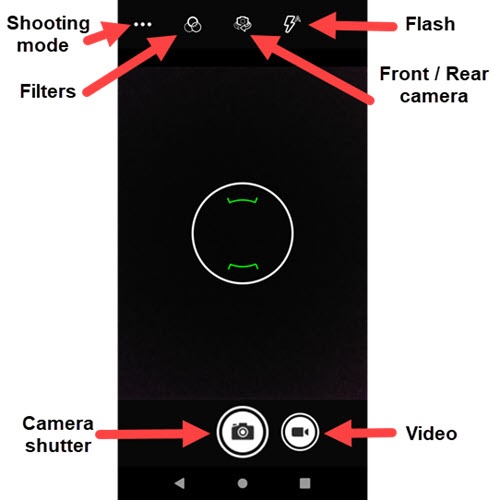
Shooting Mode
- From a Home screen, tap theCamera icon
(at the bottom).
- Tap one of the following camera modes:
- Automatic
- HDRHDR (High Dynamic Range) Combines photos or videos taken at different exposures for one optimal photo or video.
- ProMode

Filters
- From a Home screen, tap theCamera icon
- Tap one of the following filters:
- Mono
- Sepia
- Negative
- Solarize
- Posterize
- Aqua

Rear / Front Camera
- From a Home screen, tap theCamera icon
- Tap theCamera Facing iconto switch between rear and front camera.

Flash
- From a Home screen, tap theCamera icon
- Tap theFlash iconto set the flash to automatic, on or off.

Settings
- From a Home screen, tap theCamera icon
- Navigate: (at the bottom).
- Tap any of the corresponding switches to turn the following options on
or off
:
- Camera / Video Settings:
- Continuous Shot
- Redeye Reduction
- Shutter Sound
- Image Stabilization
- GeneralTapStoragethen select Phone or SD Card.
- Picture sizeTapPicture sizethen select the preferred setting (5M pixels, 3M pixels, etc.)Selected when a dot is present.
- Picture qualityTapPicture qualitythen select the preferred setting (Low, Standard, High).Selected when a dot is present.
