Kyocera DuraForce Ultra 5G UW - Common Camera Settings
Here's info on common camera settings (e.g., flash, timer, front / rear camera, etc.) for your DuraForce Ultra 5G UW.
For additional camera support, refer to the Camera section of the user guide.
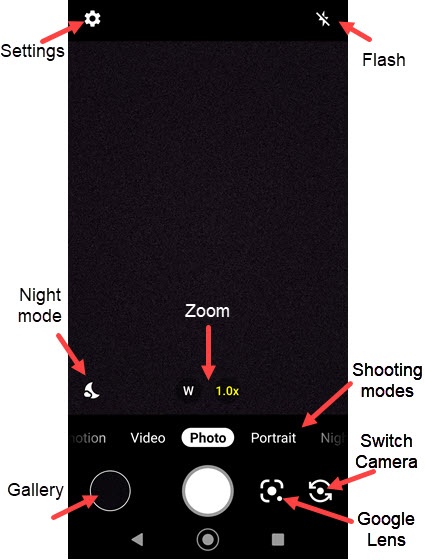
Settings
- Open theCamera app
.
- TapSettings
.
- Select an option:
- Photo sizeTap to choose an option (16MP, 12MP, etc.)
- Auto HDRTap to turn on
or off
.
- Auto night detectionTap to turn on or off.
- Add location informationTap to turn on or off.
- Preserve last modeTap to turn on or off.
- Shutter soundTap to turn on or off.
- Quick social mediaTap to turn on or off.
- Self timerTap to choose an option (off, 2 seconds, etc.)
- GridTap to turn on or off.
- Scan QR codeTap to turn on or off.
- Wide camera distortionTap to turn on or off.
- Underwater distortionTap to turn on or off.
Storage
- Open theCamera app
- Navigate: .
- Select an option:
- Phone
- SD card
Self-timer
- Open theCamera app
- Navigate: .
- Select an option:
- Off
- 2 seconds
- 5 seconds
- 10 seconds
Flash
- Open theCamera app
- Tap theFlash icon
.
- Select an option:
- Auto
- On
- Off
- Light
Zoom
- Open theCamera app
- Tap theZoom icon (W or 1.0x)then slide the bar left to right to change the camera angle.
Shooting Modes
- Open theCamera app
- To change the camera mode, swipe left or right to select an option:
- Time-lapse
- Slow motion
- VideoCapture video.
- PhotoCapture a picture.
- Portrait
- Night
- Panorama
- TapMoreto choose other options:
- Effect video
- Pro video
- Pro photo
- Effect photo
- Google Lens
- Underwater
- Action Overlay
Switch Cameras
- Open theCamera app
- Tap theCamera Facing icon
to switch between rear and front-facing camera.