TCL FLIP Pro - View / Delete Call History
Here's how to view or clear the call history or delete individual calls from your FLIP Pro.
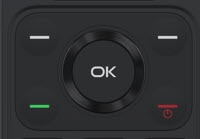
- From the main screen, press theOK button.Utilize the 5-way navigation pad to highlight and the OK button to select.
- SelectCall Log.
- Highlight then select the appropriate tab using the right and left navigation keys to view your calls (e.g., All, Missed, Dialed, etc..)
- Perform any of the following:
- Delete Individual Calls
- Highlight the individual call you want to delete.
- Press theright soft key
to choose Options.
- SelectEdit Call Log.
- Select the individual call(s) you would like to delete, then press theright soft keyto choose Delete.
- From the confirmation prompt, selectDelete.
- Delete All Calls
- Press theright soft keyto choose Options.
- SelectEdit Call Log.
- Press theleft soft keyto choose All, then press theright soft keyto choose Delete.
- From the confirmation prompt, selectDelete.