TCL TAB Pro 5G - Common Camera Settings
Here's info on common camera settings (e.g., flash, timer, front / rear camera, etc.) for your TCL TAB Pro 5G.
For additional info on camera settings, refer to the Camera section of the user guide.
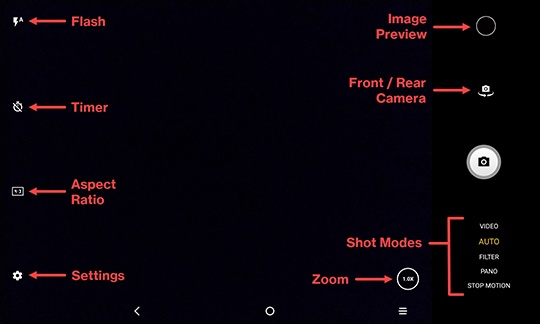
Flash
- From a Home screen, tap theCamera icon
(lower-right).
- Tap theFlash icon
.
- Select an option:
- Off
- On
- Auto
Timer
- From a Home screen, tap theCamera icon
- Tap theTimer icon
.
- Select an option:
- Off
- 2 seconds
- 5 seconds
- 8 seconds
Aspect Ratio
- From a Home screen, tap theCamera icon
- Tap theAspect Ratio icon
.
- Select an option:
- 4:3
- 1:1
- Full screen
Front / Rear Camera
- From a Home screen, tap theCamera icon
- Tap theCamera Facing iconto switch between the rear and front-facing camera.
Shot Mode
- From a Home screen, tap theCamera icon
- Tap the preferred shot mode:
- Video
- Auto
- FilterSelect the preferred filter effect from the list.
- PanoTo switch between left-to-right and right-to-left, tapTOUCH TO TOGGLE DIRECTION.
- Stop Motion
Zoom
- From a Home screen, tap theCamera icon
- Tap theZoom iconthen select the preferred zoom level (1.0x to 4.0x).

Settings
- From a Home screen, tap theCamera icon
- Tap theSettings icon
to access the following options:
- Tap then select the preferred option:
- Photo size
- Video quality
- Volume button function
- StorageOnly available if an SD / memory card is inserted.
- Tap the switches to turn on
or off
:
- Video stabilization (EIS)
- Touch to capture
- Grid
- Save location information
- Shutter sound
- TapReset settingsto return camera settings to their default values.