Verizon Internet Gateway LED Status Indicators
Verizon Internet Gateway
LED Status IndicatorsThe LED lights on your Internet Gateway indicate its power or connection status. A quick glance shows whether it's working properly or needs attention.
Before you begin
If you're unsure of the device model, refer to How to Identify Verizon 5G Home Equipment.
After plugging it in for the first time, the Verizon Internet Gateway should take approximately 8-10 minutes to connect to our network. You may see the light fluctuating between red and white during this time. After 10 minutes the following table indicates the correct status.
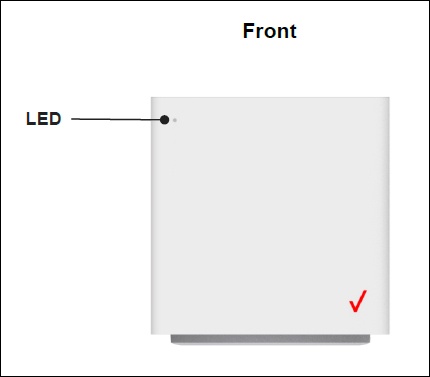
You can also manually initiate Setup Mode by holding the WPS button for 5 seconds then release (the LED on the front blinks white 3 times to indicate the device is in Setup mode). Setup mode remains in place for approximately 45 minutes. If the Gateway’s LED indicator settles on solid red, repeat setup in a different location in your home or get help in the My Verizon App.
Function | Status | LED Pattern |
Bootup | System Off | Off |
System Booting | Soft Blink White | |
Firmware update (FOTA) | Fast Blink White | |
Installation mode (5G Home customer) | Passing signal | Solid White |
LTE coverage only/No Signal | Solid Red | |
Regular usage | Setup complete | 50% Bright White |
No Signal | Solid Red | |
No SIM card | Hard Blink Red | |
Wi-Fi disable by user | Solid Green | |
Paring | WPS Paring | Hard blink Blue |
Other | Factory Reset | Fast blink yellow |
FW Error | Soft blink Red |