TCL 30 LE - Common Camera Settings
Here's info on common camera settings (e.g., flash, timer, front / rear camera, etc.) for your TCL 30 LE.
For additional camera settings, refer to the user guide.
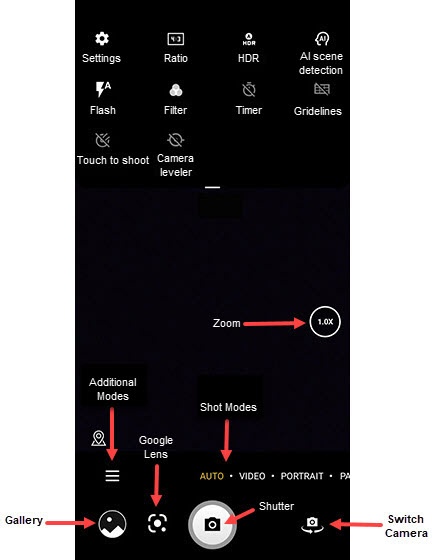
Settings
- From a Home screen, tap theCamera icon
.
If unavailable, swipe up to access all apps. - TapSettings icon
(upper-left).
- Select an option then adjust as preferred:
- Photo size
- Video quality
- Volume button function
- Storage
- Save location information
- Shutter sound
- Reset settings
Aspect Ratio
- From a Home screen, tapCamera
(lower-right).
If unavailable, swipe up from the center of the display then tapCamera. - Tap theRatio icon
then select an option:
- 4:3
- 16:9
- 1:1
- Full
HDR (High Dynamic Range)
HDR (High Dynamic Range) combines photos or videos taken at different exposures for one optimal photo or video.
- From a Home screen, tap theCamera iconIf unavailable, swipe up to access all apps.
- TapHDR.
- Select an option:
- Off
- On
- Auto
AI Scene Detection
- From a Home screen, tap theCamera iconIf unavailable, swipe up to access all apps.
- TapAIto turn on or off.
Flash
- From a Home screen, tap theCamera iconIf unavailable, swipe up to access all apps.
- Tap theFlash icon
.
- Select an option:
- Off
- On
- Flash Auto
Timer
- From a Home screen, tap theCamera iconIf unavailable, swipe up to access all apps.
- Tap theTimer icon
.
- Select an option:
- Timer off
- 2s (seconds)
- 5s (seconds)
- 8s (seconds)
Gridlines
- From a Home screen, tap theCamera iconIf unavailable, swipe up to access all apps.
- TapGridlinesto turn on or off.
Touch to Shoot
- From a Home screen, tap theCamera iconIf unavailable, swipe up to access all apps.
- TapTouch to Shootto turn on or off.
Camera Leveler
- From a Home screen, tap theCamera iconIf unavailable, swipe up to access all apps.
- TapCamera levelerto turn on or off.
Shot Modes
- From a Home screen, tapCameraIf unavailable, swipe up from the center of the display then tapCamera.
- While in the camera screen, swipe left or right to select a mode:
- Auto
- Video
- Portrait
- Pano
Additional Modes
- From a Home screen, tap theCamera iconIf unavailable, swipe up to access all apps.
- Select an option:
- PORTRAIT
- PANO
- STOP MOTION
- LIGHT TRACE
Rear or Front Facing Camera
- From a Home screen, tap theCamera iconIf unavailable, swipe up to access all apps.
- Tap theCamera Facing icon
to switch between rear and front-facing camera.
Storage Location
This option only appears if an SD / memory card is inserted.
- From a Home screen, tapCameraIf unavailable, swipe up from the center of the display then tapCamera.
- Tap theSettings icon
.
- Tap theStorage location.
- Tap then select an option:
- Internal storage
- SD card