TCL 30 LE - Manage RTT Settings
Here's how to use the real-time text (RTT) functionality on your TCL 30 LE.
Real-time text (RTT) is text transmitted instantly as it is typed or created. Recipients can immediately read the message while it is being written, without waiting or the need for an additional device.
Change RTT Visibilty
- From a Home screen, tap thePhone icon
(lower-left).
If unavailable, swipe screen up to access all apps then tapPhone. - Navigate:.Menu iconSettingsAccessibility
- TapReal Time Text.
- TapRTT Visibilitythen select from one of the following options:
- When Placing Calls
- Only During Calls
- After choosing the appropriate setting, tap theback arrow icon
(upper-left) several times to return to the calling screen.

Make a Call with RTT
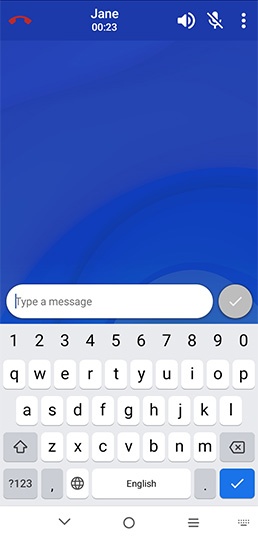
- If 'When Placing Calls' was selected under the RTT visibility setting, from a Home screen, tap, then make a phone call.Phone iconDialer iconIf unavailable, swipe screen up to access all apps then tapPhone.Once the call connects, RTT displays.

Switch a Call to RTT
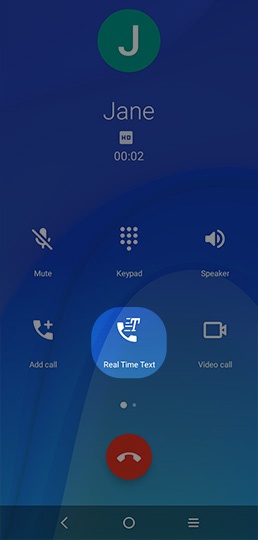
- If 'Only During Calls' was selected under the 'RTT visibility' setting, while on a call, tapReal Time Text.
End an RTT Call
- While on a call, tap theEnd icon(at the top) to end the call.
