Lenovo ThinkPad X13s - Motions and Gestures
Adjust motion and gesture settings to improve how you use your ThinkPad X13s. Customize for gestures, quicker shortcuts, and increased overall efficiency.
Trackpad Gestures
- When using two or more fingers, ensure that you position your fingers slightly apart.
- Some gestures are only available when you are using certain apps.
- Do any of the following:
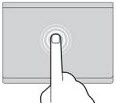
- Select an item: Tap once to select or open an item.
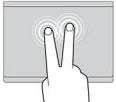
- Show more commands: Tap the touchpad with two fingers or press down in the lower-right corner to right-click.
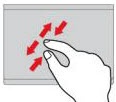
- Zoom in or out: Place two fingers on the touchpad and pinch in or stretch out.
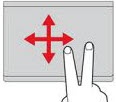
- Scroll: Place two fingers on the touchpad and slide horizontally or vertically.
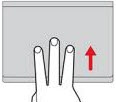
- Show all open windows: Swipe with three fingers up on the touchpad.
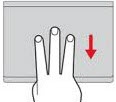
- Show the desktop: Swipe with three fingers down on the touchpad.
Touch Screen Gestures
- This device uses capacitive multi-touch technology and screen calibration is not supported.
- The capacitive touch screen requires your skin to touch the screen. If you are using a screen protector your screen may not work as designed.
- Some gestures are only available when you are using certain apps.
- Do any of the following:
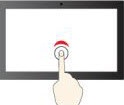
- Select an item: Tap once to single click.
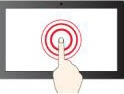
- Show more commands: Tap and hold to right-click.
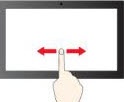
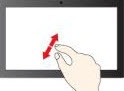
- Scroll: Place two fingers on the screen and slide horizontally or vertically.
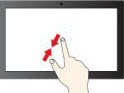
- Zoom out: Place two fingers on the screen and stretch out.
- Zoom in: Place two fingers on the screen and pinch in.
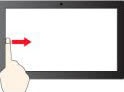
- See widgets: Swipe from the left to open widget panel.
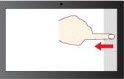
- Open notification center: Swipe from the right to open notification center.
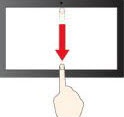
- Close the current app: Swipe downwards to close the current app.