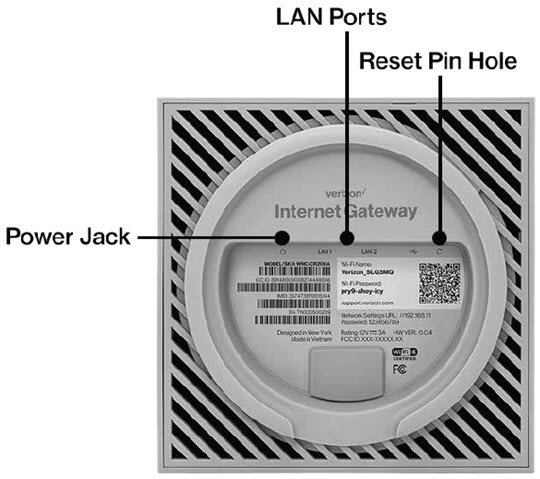
Verizon Internet Gateway (WNC-CR200A) Establish Wired Connection
Verizon Internet Gateway (WNC-CR200A)
Establish Wired ConnectionConnecting via Ethernet provides a more stable and reliable connection to your Internet Gateway (WNC-CR200A). It reduces lag, minimizes interference and ensures consistent speeds for activities like gaming, streaming and video conferencing.
Steps
- Plug one end of the Ethernet cable into any of the 2 gray Ethernet (LAN) ports on the bottom of the Internet Gateway.
- Plug the other end of the Ethernet cable into an Ethernet port on a computer.
- If necessary, power on the router and/or computer.Allow adequate time for both to power up and the computer to detect the Ethernet connection.
- From the computer, open a web browser to test connectivity.A successful Ethernet / hard-wired connection verifies the device is online and connected to the Internet. If an issue happens during Wi-Fi connection, troubleshoot the Wi-Fi settings of the router and the device being connected.If testing fails, try replacing your Ethernet cable and try to test the connection again.