Verizon Internet Gateway (WNC-CR200A) Activate / Set Up Device
Verizon Internet Gateway (WNC-CR200A)
Activate / Set Up DeviceLearn how to unbox, assemble, and activate your Internet Gateway (WNC-CR200A) to get your home network running smoothly without any hassle.
Before you begin
This content is for the Verizon Internet Gateway (WNC-CR200A). If you're unsure of the device model, refer to How to Identify Verizon 5G Home Equipment.
Inside the Verizon Internet Gateway (WNC-CR200A) box:
- Setup guide
- Verizon Internet Gateway (WNC-CR200A)
- Power adapter
- Ethernet cable
A My Verizon account is necessary to manage your device. Refer to Create Profile / Register for My Verizon - Website for more info.
Steps
- Remove the Gateway from the box.
- Place the Gateway on a stable surface near a window.
- Connect the power adapter to the Gateway and plug it into a power outlet.The Gateway’s blinking white light means it’s starting up. The light may fluctuate between red and white for up to 5 minutes; don’t unplug the Gateway. If the light turns solid red, move the Gateway to a different location and try again. Use the Verizon Home app for support.
- Check for a solid white light on the Gateway.It can take up to 5 minutes to appear. Once the Gateway shows a solid white, setup is complete.
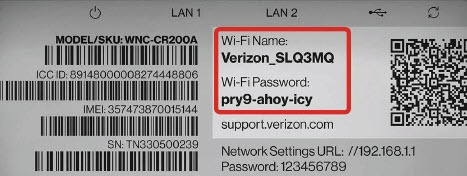
- Connect your devices to your new Wi-Fi network.Use the Wi-Fi name and password printed on the back of the Gateway to connect your devices. Or scan the QR code printed there to connect automatically. You can edit your Wi-Fi name and password in the Verizon Home app.
Via My Verizon app
- Using a mobile device, open the camera and scan the QR code located on top of the toolkit box found inside the router box.If you're unable to scan the QR code, open a browser on your mobile device and navigate to thehttp://setup.verizon.com/homewebsite.
- TapStart 5G Home Internet setupto get started.
- From the 'Welcome to 5G Home Internet' screen, tapWatch video.
- From the 'Let's get started' screen, tapContinue.
- Remove the router and AC adapter from the box then tapContinue.
- Review the 'Tips to set up the Gateway' then tapGot it.
- Make sure it's near a window on or above the ground floor. Avoid windows in the basement.
- Place it on an elevated surface to allow the signal to transmit to every area of your home. This allows the signal to transmit to every area of your home.
- Clear away any objects to close to the window. Clutter could interfere with the Gateway getting a signal.
- Place the router on an elevated surface near a window or exterior-facing wall then tapContinue.
- Connect the AC adapter to the router and plug it into an outlet. You will see a white blinking light for about 5 minutes. TapContinuewhen the light stops blinking.
- Wait 5 minutes until you see a solid white light then from the screen prompt, tapSolid white light.If you see a solid red light, the Gateway has found a weak signal. TapUse 5G compassthen follow the on-screen prompts or watch this 5G compass video for more info. This option is only available for 5G Home Plans.If you see a blinking white light, the device may be updating firmware. Wait for about 5 minutes until you see a solid white light.
- Once you click on Solid white light, tapContinueafter the following screens display: Communicating with the Gateway > Checking your connection > Connecting to the internet > You found a strong signal.
- Connect to Wi-Fi either by scanning the QR code on the bottom of the Internet Gateway with your phone or by entering the Wi-Fi name and password on your device then tapContinue.
- From the 'Success' screen, tapManage networkto personalize your Wi-Fi name and password in Network settings, and more.