Inseego MiFi PRO M4 Insert / Remove Battery
Inseego MiFi PRO M4
Insert / Remove BatteryA quick troubleshooting step is to remove and re-insert the battery. If your MiFi® PRO M4 is slow or frozen or won't power on, this may help it run properly again.
Before you begin
Use only approved batteries and chargers with your device. The warranty doesn't cover damage caused by non-approved batteries and/or chargers.
Ensure your device is powered off and not connected to any device or power source.
Steps
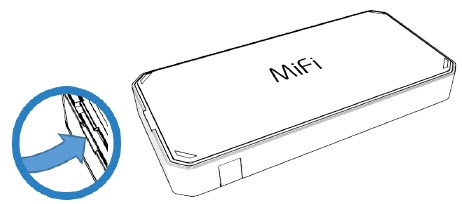
- Remove the battery cover.Using the provided notch on the left side of the device with the display facing down, carefully lift then detach the cover. Set the cover aside.
- Do one of the following:
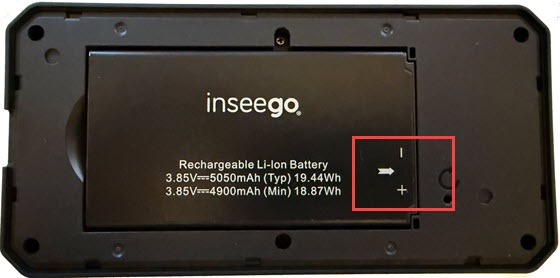
- To insert the battery: Ensure the connectors on the battery align with the connectors on the device. The white arrow should be face up and pointing to the connector.
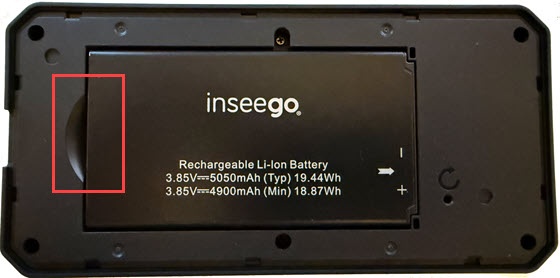
- To remove the battery: Insert your finger into the battery-removal divot to lift the battery out of the battery compartment.
- Replace the battery cover.Set the cover on the device so the notches align then press on the cover until it clicks into place and is flat across the entire bottom surface.