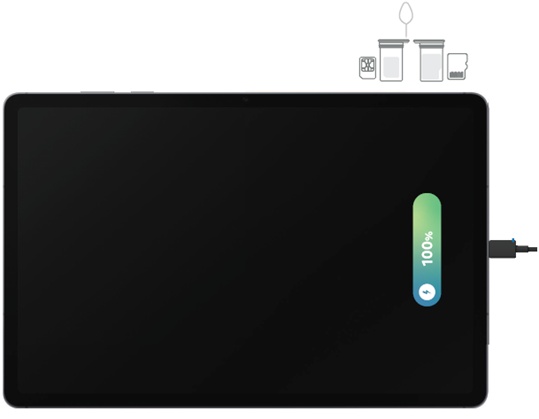
Samsung Galaxy Tab S12+ 5G Insert or Remove SD / Memory Card
Samsung Galaxy Tab S12+ 5G
Insert or Remove SD / Memory CardIf your Galaxy Tab S12+ 5G is low on storage, use an SD card for extra space. Follow these steps to insert or remove it without losing data.
Before you begin
Ensure your Galaxy Tab S12+ 5G is powered off before trying to insert or remove an SD / memory card.
Steps
- With the device in portrait orientation and the display facing up, remove the card tray from the upper-right edge of the device.Use the SIM removal tool (or a paperclip) to unlock the tray by inserting it into the provided slot to eject the tray.
- Do one of the following:
- To insert the SD / memory card: The card goes into the slot on the opposite side of the tray from the SIM card. The slot is keyed so there is only one way to insert the card; ensure the gold contacts are facing up and the notch is aligned with the SIM / SD card tray.
- To remove the SD / memory card: From the bottom of the card, carefully lift to remove. To assist, use the opening on the opposite side of the tray to dislodge and remove the SIM card if needed.
- Re-insert the card tray then press it back into its slot until it clicks.