Push to Talk Plus Contact Management Tool - Manage Sub Lists
Here's how to manage sub list with the Push to Talk Plus contact management tool.
- Sign in to the Push to Talk admin page via My Business.
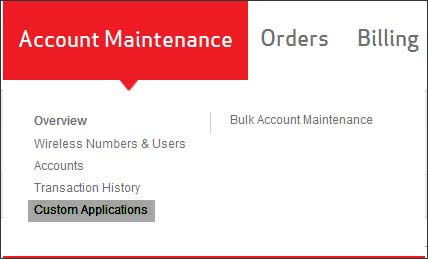
- From the Account Maintenance tab, clickCustom Applications.
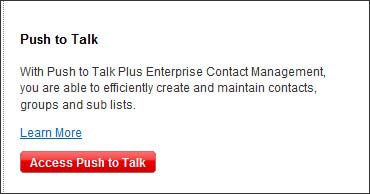
- ClickAccess Push to Talk.
- Click theSub Lists tab.Search, Create, Delete & Assign (Sub Lists) are the available options.Sub Lists can only be assigned to 4G Internal Contacts.
- Click a sub list link to view details and to perform the following action(s) as appropriate:
- Click the name to change the name.
- ClickAdd Contacts, select the contacts then clickDone.
- ClickSelect Contacts, select the contacts then clickDone.
- ClickDelete Selectedto delete a sub list.