Push to Talk Plus - Apple - Initial Setup
Here's how to set up Push to Talk Plus on your Apple device.
Visit My Verizon to add the Push To Talk Plus add-on to your account.
- Once the account is set up for Push To Talk Plus, a message (text or email) is sent to the device with a link to download the app from the Apple® App Store®.
- If the app was previously installed on the device and must be reinstalled, navigate to the App Store, search for Verizon Push to Talk Plus then proceed to step 2.
- Upon uninstalling/reinstalling the app, Push To Talk Plus call history is erased.
- Tap the link in the text message.This directs the device to the App Store.
- TapGetthen tapInstall.
- Once the download is complete, tapOpen.
- To continue, review the End User License Agreement (EULA) then tap theCheck mark icon
(located in the lower-left).
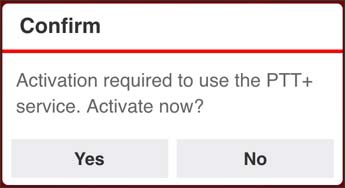
- From the Confirm prompt, tapYesto activate the app.Activation may take up to 1 minute and is followed by a "Client successfully activated" screen.