GPS over Wi-Fi - Verizon Jetpack® 4G LTE Mobile Hotspot - AC791L
If you need GPS on your Verizon Jetpack - AC791L for use with computer apps, view this info.
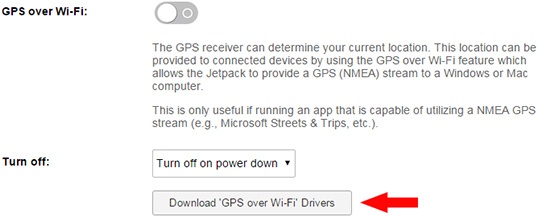
- The GPS over Wi-Fi setting allows the device to provide a GPS (NMEA) stream to a Windows or Mac computer.This is only useful if running an app that is capable of utilizing a NMEA GPS stream (e.g., Microsoft Streets & Trips, etc.).
- To utilize GPS over Wi-Fi, a driver must be installed on the computer.
- Access the Admin Web Interface.
- From the left menu, clickJetpack Settings.
- From the Jetpack tab, clickGPS.
- Slide theswitchto turn ON
or OFF
.
If presented, review the agreement and click "I Agree" (checked) then click "Yes, proceed" to continue. - ClickSave(located on the bottom).The save option only appears once a change is made.
- If GPS over Wi-Fi (NMEA) is on, launch the GPS-enabled app on the computer then configure it to utilize a NMEA port or GPS receiver.Refer to the app's help menu or contact the app developer for assistance.Once the app has found the NMEA port / GPS receiver, it should report "Waiting for your location" or similar until a GPS fix is obtained. After that, it uses or displays the current GPS location.
- Access the Administration Web Interface.
- From the left menu, clickJetpack Settings.
- From the Jetpack tab, clickGPS.
- Click theDownload 'GPS over Wi-Fi' Driversbutton.
- Locate the file in the downloads folder of your computer to complete installation.