Change Network Mode - Verizon Jetpack® 4G LTE Mobile Hotspot - AC791L
If your Mobile Hotspot - AC791L drops data connections due to being near a network border, locking onto a specific network can help; however, roaming charges may apply.
- Access the Admin Web Interface.
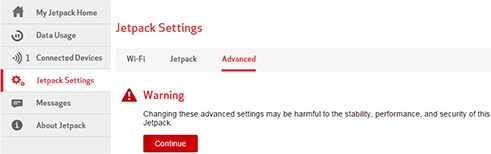
- From the left menu, clickJetpack Settings.
- From the Advanced tab, clickContinue.
- ClickNetworks.
- Click the 'Network technology' fielddropdown menuthen select the applicable setting:
- Global (default): This is the preferred setting for most locations.
- LTE Only: This setting should only be selected if experiencing service issues in locations that offer multiple network types and only LTE is needed.
- CDMA Only: This setting should only be selected if experiencing service issues in locations that offer multiple network types and only LTE is needed.
- LTE/UMTS/GSM: This setting should only be selected if experiencing service issues in locations that offer multiple network types and only LTE is needed.The preferred international carrier is automatically selected.You can manually select an alternate carrier but it may require as many as 6 attempts to successfully register.
- ClickSave.The save option only appears after a change is made.