Port Forwarding - Verizon Jetpack® 4G LTE Mobile Hotspot - AC791L
Here's how to open blocked ports on your Verizon Jetpack AC791L to allow additional access.
- Changing advanced settings may be harmful to the stability, performance and security of the Jetpack. Contact your local IT administrator prior to altering any of these settings.
- Port Forwarding is an advanced feature. For additional assistance, contact your IT support. To obtain settings, contact the app manufacturer.
- Access the Admin Web Interface.Launch a web browser then navigate to 192.168.1.1.Refer to connecting to a Wi-Fi network for additional assistance. Select the appropriate option:
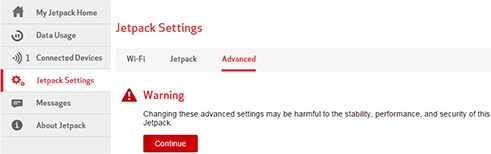
- From the left menu, clickJetpack Settings.
- From the Advanced tab, clickContinue.
- ClickPort Forwarding.
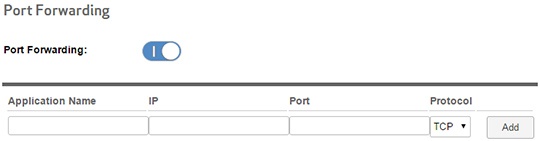
- Slide thePort Forwardingswitchto turn onor off.
- If turned on, enter the following information then clickAdd.
- Application Name
- IP
- Port
- Protocol (select from the dropdown menu):
- TCP
- UDP
- ClickSave(located at the bottom).The save option only appears after a change is made.