Samsung Galaxy S8 / S8+ - Common Camera Settings
Here's info on common camera settings (e.g., flash, HDR, etc.) for your Galaxy S8 / S8+.
For additional info on camera settings, refer to the Camera and Video section of the user guide.
HDR Mode
- From a Home screen, tap theCamera icon(at the bottom).
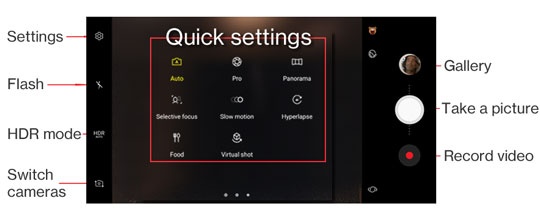
- Touch and swipe right to display quick settings.
- Tap theHDR iconto turn the feature on or off.

Timer
- From a Home screen, tap theCamera icon
(at the bottom).
- Touch and swipe right to display quick settings.
- TapSettings.
- TapTimerthen select an option:
- Off
- 2 secs
- 5 secs
- 10 secs

Flash
- From a Home screen, tap theCamera icon
- Touch and swipe right to display quick settings.
- Tap theFlash iconto select an option (On, Off, Auto).

Rear or Front Facing Camera
- From a Home screen, tap theCamera icon
- Touch and swipe right to display quick settings.
- Tap theCamera Facing iconto switch between front and rear camera. Alternatively, touch and swipe up or down to switch camera.

Volume Key Functions
- From a Home screen, tap theCamera icon
- Touch and swipe right to display quick settings.
- TapSettings.
- TapVolume Key Function.
- Select an option:
- Take Picture
- Record Video
- Zoom
- System volume
Storage Location
- From a Home screen, tap theCamera icon
- Touch and swipe right to display quick settings.
- TapStorage Location.
- Select an option:
- Phone
- SD Card
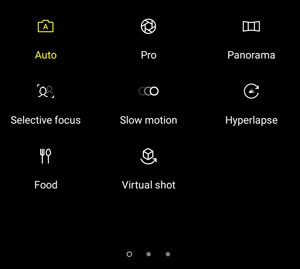
Shot Mode
- From a Home screen, tap theCamera icon
- Touch and swipe right to display quick settings.
- Select an option:
- Auto
- Pro
- Panorama
- Selective focus
- Slow motion
- Hyperlapse
- Food
- Virtual shot