KYOCERA Cadence LTE - Check for Physical Damage
Here's how to determine if your Cadence has sustained liquid or other physical damage.
- Prepaid service customers: Visit a Verizon store to order warranty replacements. Orders for prepaid warranty issues can't be processed via Customer Service.
- Standard service customers: If you need to replace your device under warranty and the device has unreasonable wear and tear or any of the following, you could be assessed a damaged device fee.
Device damage examples include, but are not limited to:
Liquid or Corrosion Evidence
- To identify if your device has water damage, check for:
- corrosion, discoloration, or fuzzy growth on the charging, headset, SIM or memory ports.
- moisture under the display screen.
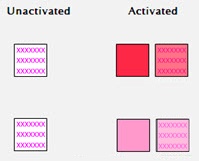
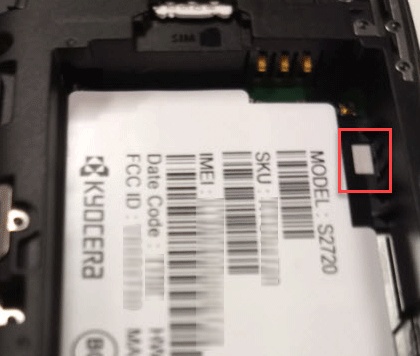
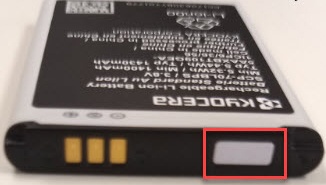
- Liquid Detection Indicator (LDI) / Liquid Contact Indicator (LCI) is activated.Kyocera uses a white field with pink or red "X" marks to indicate a device that has had no liquid contact. When the indicator comes in contact with liquid, the "X" marks become pink or red smudge marks across the white field.The Liquid Damage Indicators (LDI) are located:
- inside in the battery compartment upper-right side.
- on the top edge of the battery.
Damaged Ports
- View the following ports using a bright light and magnifier if possible:
- HeadsetThe image below is an example and may vary by device.
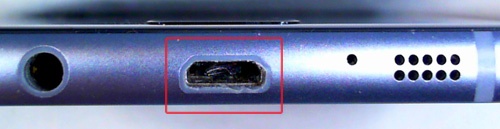
- USB / ChargingExamples of charging port damage include but are not limited to:
- Port loose or wiggles
- Bent
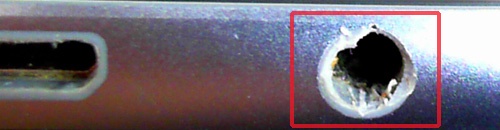
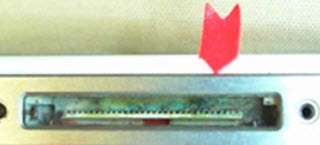
- CorrosionThe images below are examples and may vary by device.
- Memory card
Display or Physical Button Issues
- Device damage examples include, but are not limited to:
- Bleeding displayThe image below is an example and may vary by device.
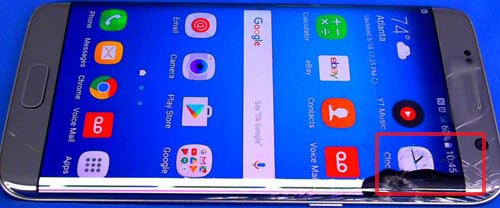
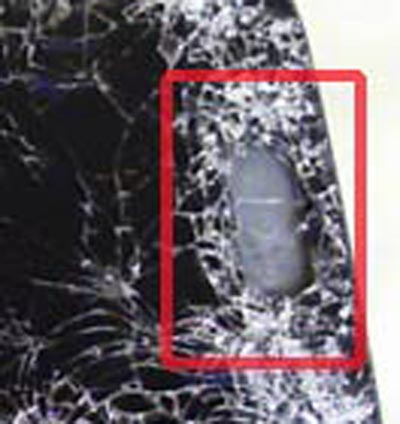
- CracksThe image below is an example and may vary by device.
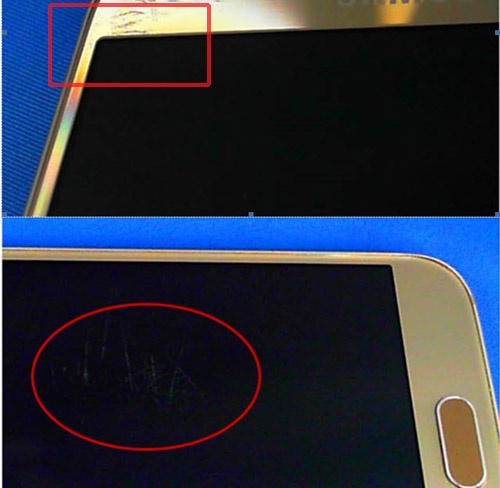
- Excessive scratchesThe images below are examples and may vary by device.
- SeparationExamples of separation include but are not limited to (e.g., lens or housing separating from device frame).The image below is an example and may vary by device.
- Missing physical buttons (e.g., volume, power, home, etc.)The image below is an example and may vary by device.
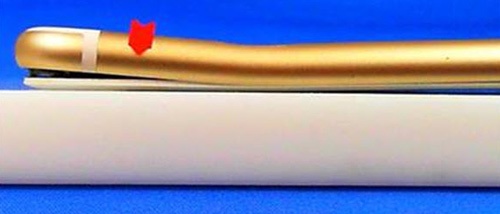
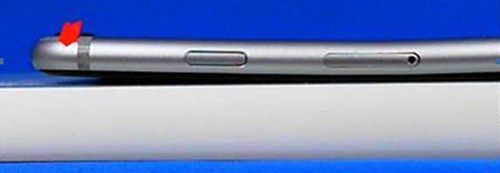
- WarpingDevice or screen won't lay flat.The image below is an example and may vary by device.
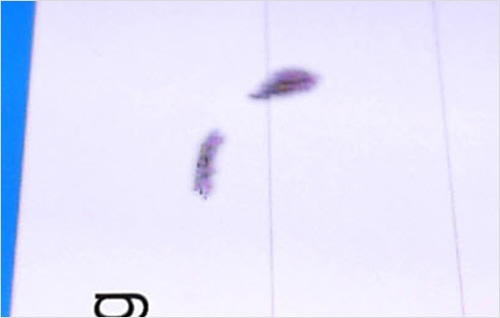
- LinesSolid line(s) present across the screen.The image below is an example and may vary by device.
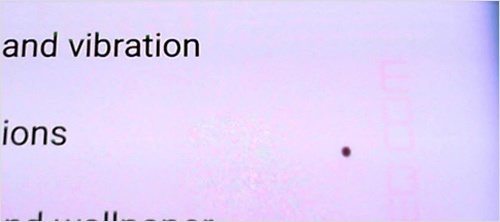
- Pixel DeformitiesCaused by physical impact to screen or device.The images below are examples and may vary by device.
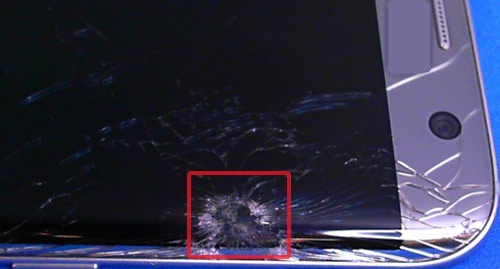
- PuncturesThe image below is an example and may vary by device.

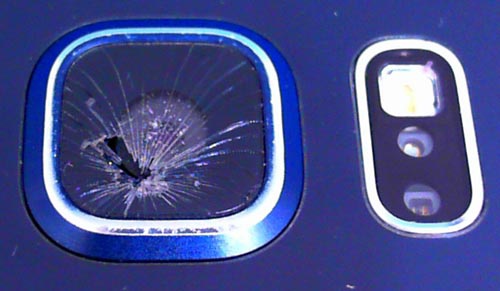
Missing or Cracked Camera Lenses
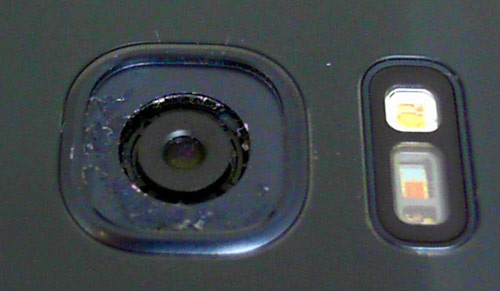
- Missing camera lensThe image below is an example and may vary by device.
- Cracked camera lensThe image below is an example and may vary by device.
Hardware Modifications
- A hardware modification is any physical change made to the device not performed by the manufacturer or an authorized agent of the manufacturer.
- Most alterations of this type are cosmetic but involve opening the device case in a way that voids the manufacturer's original warranty and is considered physical damage.
- Hardware modifications include, but are not limited to:
- bezels or cases that involve opening the case and removing the original housing.
- non-removable back case detached.
- device screens replaced.
- aftermarket decorations affixed permanently to the device.
Replacement Options
If damage is found, several replacement options may be available.