Samsung Galaxy Note8 - Turn App Permissions On / Off
Here's how to turn app permissions for your Galaxy Note8 on or off.
- Downloaded apps designed for Android 6.0 (Marshmallow) and up only ask for permission the first time you use a feature rather than asking for permissions out of context.
- Turning off certain permissions may result in basic features no longer working as intended.
- Open theSettings app.
- TapApps.
- Ensure All apps is selected.If necessary, tap theDropdown icon
then select
All apps. - Locate then select the appropriate app.If system apps aren't visible, tap the.Menu iconShow system apps
- If available, tapPermissions.
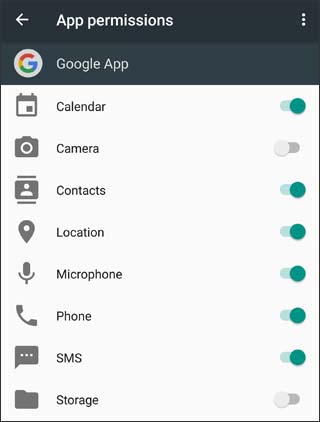
- Select available permissions (e.g., Camera, Contacts, Location, etc.) to turn on or off.If prompted, review the message then tap CANCEL or DENY.The image below is an example.