Kyocera DuraXV LTE - Lock Code
Here's how to set up the lock code on your DuraXV LTE.
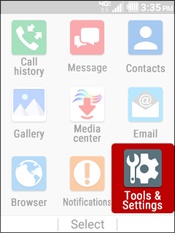
- From the main screen, selectMenu.Utilize the 5-way navigation pad to highlight and the center button to select.
- SelectTools & Settings.
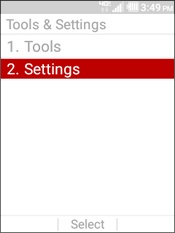
- SelectSettings.
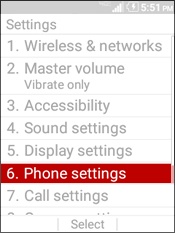
- SelectPhone Settings.
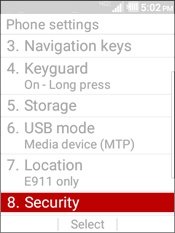
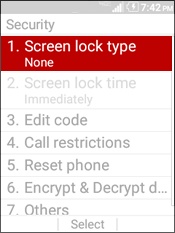
- SelectSecurity.
- SelectScreen lock type.
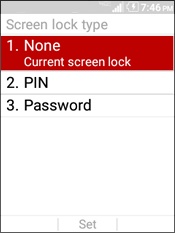
- Select an option:
- None
- SelectSet.
- PIN
- Enter a PIN then selectOK.The PIN must be at least 4 digits long.
- Re-enter the PIN to confirm then selectOK.
- Password
- Enter a password then selectOK.The password must be at least 4 characters long.
- Re-enter the password to confirm then selectOK.
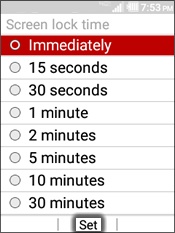
- If available, selectScreen lock time.This option will be grayed out if it's not available.
- Select an time option (e.g., Immediately, 15 seconds, etc.) then selectSet.