Samsung Galaxy Note9 - Common Camera Settings
Here's info on common camera settings (e.g., flash, zoom, etc.) for your Galaxy Note9.
For additional info on camera settings, refer to the 'Camera and Video' section of the user guide.
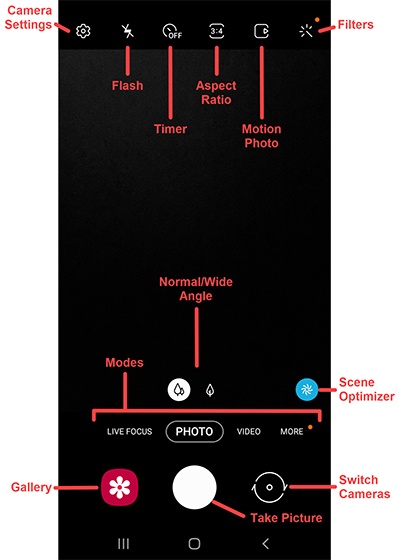
Normal / Wide-Angle Lens
- From a Home screen, tapCamera
(lower-right).
If unavailable, swipe up or down from the center of the display then tapCamera. - Tap theNormal / Wide angle switch
to change between the normal and wide angle cameras.
Flash
- From a Home screen, tapCameraIf unavailable, swipe up or down from the center of the display then tapCamera.
- Tap theFlash icon
.
- Select an option:
- On
- Off
- Auto
Switch Cameras
- From a Home screen, tapCameraIf unavailable, swipe up or down from the center of the display then tapCamera.
- Tap theFront/rear camera iconto switch between rear-facing and front-facing cameras.

Mode
- From a Home screen, tapCameraIf unavailable, swipe up or down from the center of the display then tapCamera.
- From the default camera screen, swipe left or right to cycle through the available options (listed below the capture frame):
- Live FocusAllows camera to capture background and subject separately.
- Photo
- Video
- MoreAdditional modes are displayed in a menu:
- ProManually adjust ISO sensitivity, exposure value, white balance, and color tone.
- PanoramaOnly available while using rear facing camera.
- Food
- NightOptimized for taking photos in a low-light environment
- Wide Selfie
- Super Slow-moCaptures video in slow motion.
- Slow Motion
- HyperlapseCreate time lapse videos.
Camera Settings
- From a Home screen, tapCameraIf unavailable, swipe up or down from the center of the display then tapCamera.
- TapSettings
.
- Select an option then adjust any of the following as preferred:Available options vary depending on camera being used (Rear Camera or Front Camera).
- Scene optimizer
- Scan QR codes
- Rear picture size
- Front picture size
- Hold Shutter button toChange what happens when the Shutter button is held
- Save RAW copies
- Rear video size
- Front video size
- Advanced recording options
- Super Slow-mo
- Video stabilization
- HDR (rich tone)
- Tracking auto-focus
- Grid lines
- Location tags
- Shooting methods
- Quick launch
- Shutter sound