Verizon GizmoTablet - Insert or Remove SD / Memory Card
Here's how to insert or remove an SD / memory card for your GizmoTablet.
The Verizon GizmoTablet™ supports microSD memory cards which can be purchased from any Verizon store or online.
- Ensure the device is powered off.
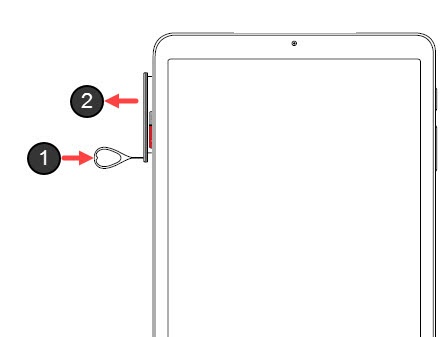
- From the left edge of the device (display facing up), remove the card tray.Utilize the insertion/removal tool (or a paperclip) to unlock the tray by inserting it into the provided slot (figure 1) then remove the tray (figure 2).
- Do one of the following:
- Insert SD / memory cardInsert the card as shown (gold contacts facing down).
- Remove SD / memory cardFrom the bottom of the card, carefully lift to remove. To assist, use the opening on the opposite side of the tray to dislodge (using a fingernail or similar tool).
- Insert the card tray.Press in on the tray to lock it into place.