Samsung Chromebook Plus - Device Lock
Here's how to lock and unlock your Chromebook Plus.
Lock the Device
- To lock the Chromebook, perform either of the following:
- From the keyboard, press and hold theLock key(upper-right) for 2 seconds or longer.
- Press and hold thePower Buttonthen tap or click theLock Screen icon
.

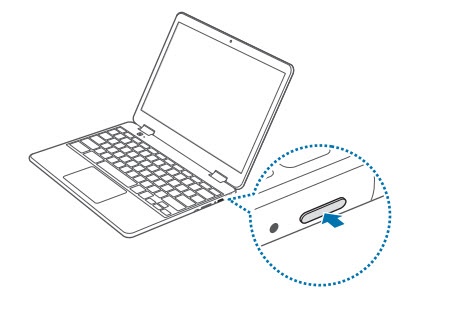
Unlock the Device
- If necessary, press thePower buttonlocated on the top-edge (left of the volume key) to wake the device.
- Enter the password then tapEnter.