KYOCERA DuraForce PRO 2 - Check for Physical Damage
Here's how to help determine if your DuraForce PRO 2 has liquid or other physical damage.
- Prepaid service customers: Visit a Verizon store to order warranty replacements. Orders for prepaid warranty issues can't be processed via Customer Service.
- Standard service customers: If you need to replace your device under warranty and the device has unreasonable wear and tear or any of the following, you could be assessed a damaged device fee.
Device damage examples include, but are not limited to:
Liquid or Corrosion Evidence
The IP68 dust and water-resistance Ingress Protection rating means your device is completely protected against dust, and it's water-resistant in up to 5 feet of water for up to 30 minutes. Follow these tips carefully to prevent damage to the device:
- If device gets wet, dry it thoroughly with a clean, soft cloth.
- Don't expose the device to salt water or ionized water.If exposed to salt water, wash with fresh water then dry thoroughly with a clean, soft cloth to prevent salt accumulation to primary microphone, earpiece, and external speaker when it dries.
- When drying your device, be sure to pat the earpiece (top front of the device), primary microphone (bottom of device), external speaker (back of device), and the power / accessory (USB) interface connector with a clean, soft cloth to remove as much water as possible.
- When making a call immediately after your device is wet, the microphone may have water in it, which may lower the volume the other person hears. After drying off the device, allow the device to air-dry before making a call.
- Physical damage to your device such as chips and cracks can significantly reduce its ability to resist dust and water.
- To identify if your device has water damage, check for:
- corrosion, discoloration, or fuzzy growth on the charging, headset, SIM or memory ports.
- moisture under the display screen.
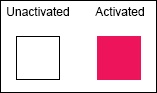
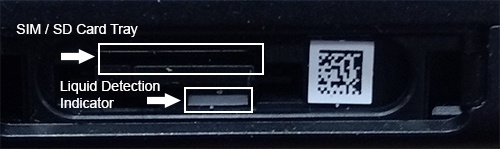
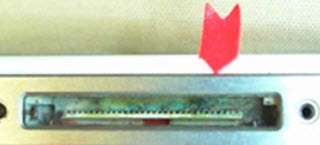
- Liquid Detection Indicator (LDI) / Liquid Contact Indicator (LCI) is activated.Kyocera uses a white field indicate a device that has had no liquid contact. When the indicator comes in contact with liquid, the field becomes red.The SD Memory card / SIM card tray is located on the right side of the phone. To view the LDI:
- Remove the protective cover on the right side of the phone.
- Remove the SD Memory card / SIM card tray.
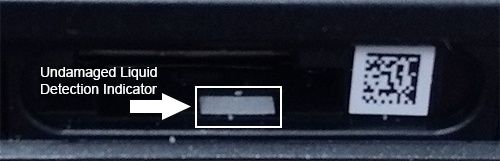
- The LDI is located below the SD Memory card / SIM card tray slot and is visible when the tray is removed from the device and it should be white.
- If the LDI is red then there was water inside the compartment at some point.

Damaged Ports
- View the following ports using a bright light and magnifier if possible:
- HeadsetThe image below is an example and may vary by device.
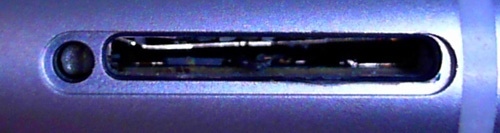
- SIM trayThe image below is an example and may vary by device.
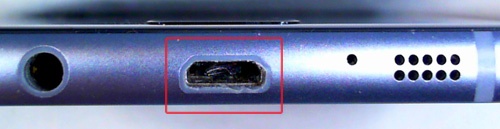
- USB / ChargingExamples of charging port damage include but are not limited to:
- Port loose or wiggles
- Bent
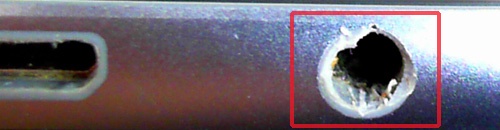
- CorrosionThe images below are examples and may vary by device.
- Memory card
Display or Physical Button Issues
- Examples of screen damage / button issues include but are not limited to:
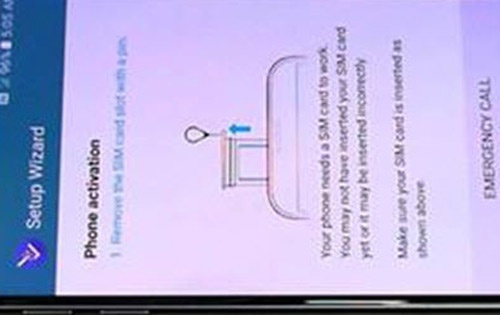
- Bleeding displayThe image below is an example and may vary by device.
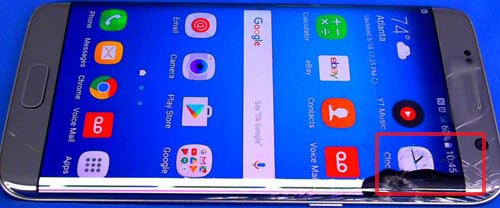
- CracksThe image below is an example and may vary by device.
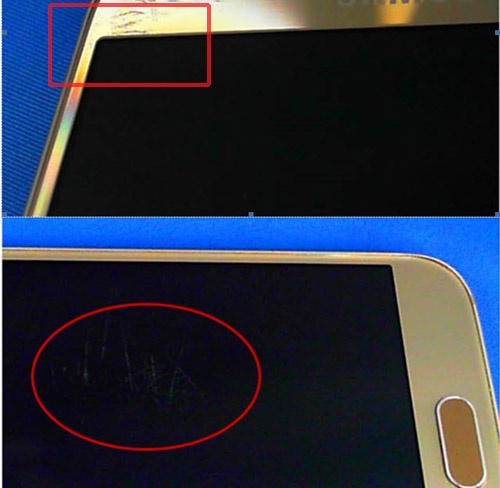
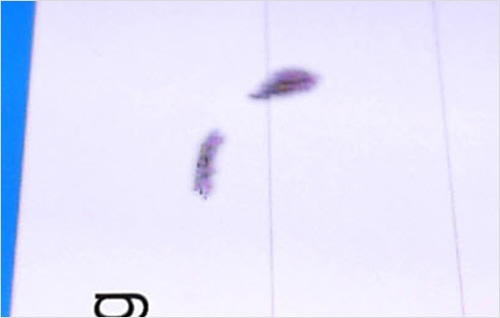
- Excessive scratchesThe images below are examples and may vary by device.
- SeparationExamples of separation include but are not limited to (e.g., lens or housing separating from device frame).The image below is an example and may vary by device.
- Missing physical buttons (e.g., volume, power, home, etc.)The image below is an example and may vary by device.
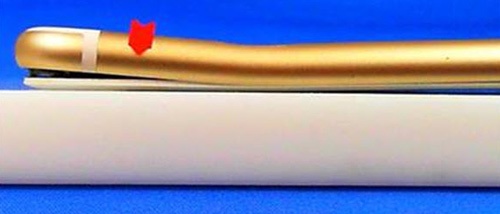
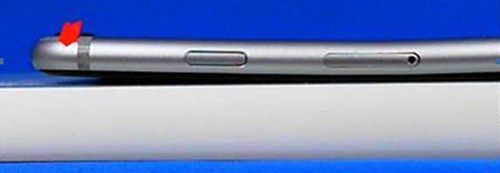
- WarpingDevice or screen won't lay flat.The image below is an example and may vary by device.
- LinesSolid line(s) present across the screen.The image below is an example and may vary by device.
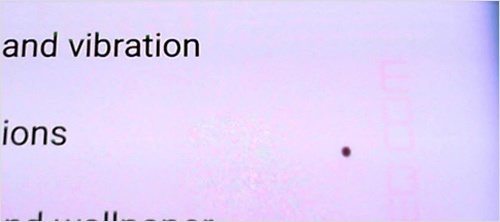
- Pixel DeformitiesCaused by physical impact to screen or device.The images below are examples and may vary by device.
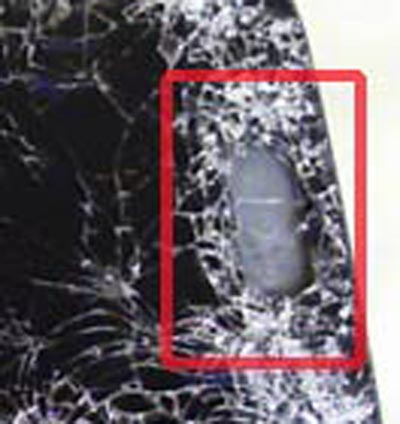
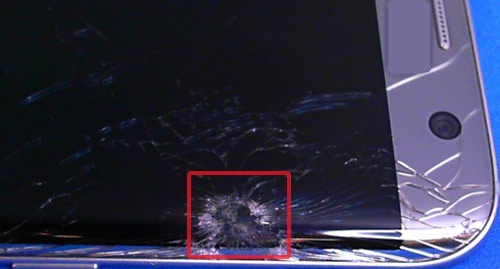
- PuncturesThe image below is an example and may vary by device.

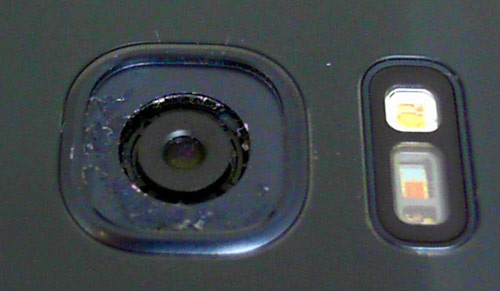
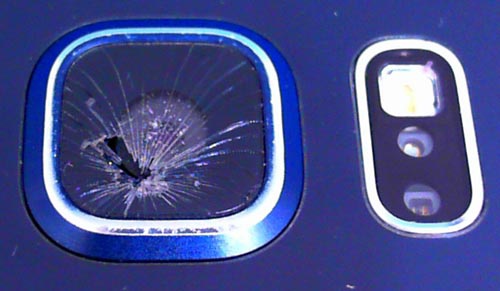
Missing or Cracked Camera Lenses
- Missing camera lensThe image below is an example and may vary by device.
- Cracked camera lensThe image below is an example and may vary by device.
Hardware Modifications
- A hardware modification is any physical change made to the device not performed by the manufacturer or an authorized agent of the manufacturer.
- Most alterations of this type are cosmetic but involve opening the device case in a way that voids the manufacturer's original warranty and is considered physical damage.
- Hardware modifications include, but are not limited to:
- bezels or cases that involve opening the case and removing the original housing.
- non-removable back case detached.
- device screens replaced.
- aftermarket decorations affixed permanently to the device.
Replacement Options
If damage is found, several replacement options may be available.