Lenovo tab 4 8 PLUS - Add / Remove Fingerprint Recognition
Here's how to set up and manage fingerprint recognition to unlock your Tab 4 8 PLUS.
For the fingerprint scanner to operate, hands must be clean and moisture-free.
- From a Home screen, navigate:.SettingsSecurity & location
- From the 'Device security' section, tapFingerprint.
- Enter the current PIN, password or pattern.
- Perform one of the following:
- First Time Setup
- Review the message then tapNEXT.
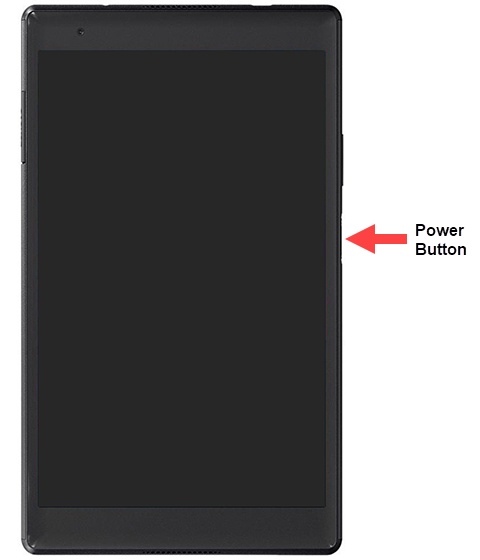
- Using on-screen prompts as a guide, lightly tap thePower buttonmultiple times to scan your fingerprint.
- TapDONE.
- Add More Fingerprints
- TapAdd fingerprint.Up to 5 fingerprints can be registered on the device.
- Using on-screen prompts as a guide, lightly tap thePower buttonmultiple times to scan your fingerprint.
- Tap 'Done' if finished or 'Add fingerprint' to continue adding fingerprints.
- Remove Fingerprint(s)
- Tap theDelete icon
to the far right of the fingerprint you wish to remove.
- TapDELETE.If removing the last fingerprint, tapYES, REMOVE.