moto g7 power - Manage RTT Settings
Here's how to use the real-time text (RTT) feature on your moto g7 power.
Real-time text (RTT) is text transmitted instantly as it is typed or created. Recipients can immediately read the message while it is being written, without waiting or the need for an additional device.
Enable / Disable RTT
- From a Home screen, tapPhone
(lower-left).
If unavailable, swipe up on a Home screen to access all apps, then tapPhone. - Navigate:.Menu iconSettingsAccessibility
- TapReal Time Text (RTT) Callto turn on
or off
.
If prompted with a 'No Video Calls or Call Merging' message, tapOKto accept. Then tap theBack icon(upper-left) several times to return to the calling screen.
When RTT is enabled on both devices no audio is heard on the call. If you aren't hearing audio make sure RTT is turned off.

Make a Call with RTT
- With RTT enabled, from a Home screen, tapPhoneIf unavailable, swipe up on a Home screen to access all apps, then tapPhone.
- Tap theDialer icon
(lower-right), enter a 10-digit number then tap the
RTTCall icon.
To place a call from the Contacts list, tapContacts, tap the appropriate contact then tap the desired number to dial.
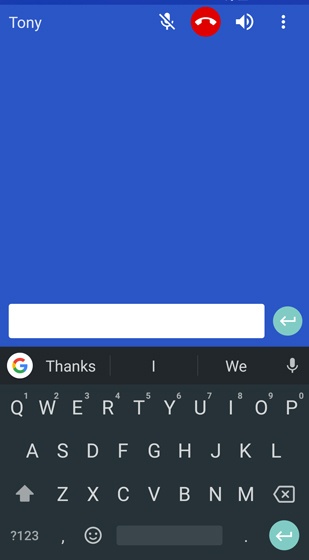
- Once the call connects, RTT keyboard shows.
Switch a Call to RTT
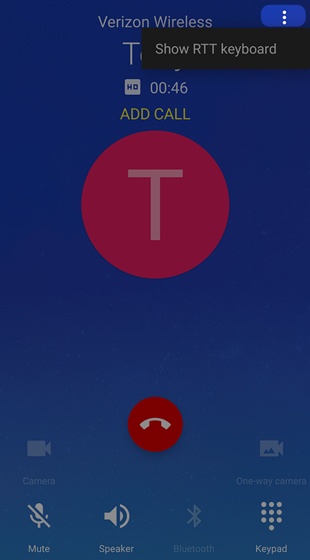
- If RTT is turned off, while on a call, navigate:.Menu iconShow RTT keyboard
End an RTT Call
- While on a call, tap theEnd icon(top) to end the call.
