5G MiFi® M1000 - Change the Wi-Fi Password
Here's how to change the Wi-Fi password used to connect to your 5G MiFi M1000.
This applies to changing the password used to connect to your Verizon MiFi via Wi-Fi, not the Administration Password which is used to sign in to the device web interface to manage settings (e.g. network name, passwords, etc.).
- Access the Admin Web Interface (http://my.jetpack).
- ClickSign In(located in the upper-right) then enter the Admin password.By default the Wi-Fi and Admin passwords are the same.
- From the Settings section, click thenavigation arrow
(lower-right) to open the Settings page.
- ClickWi-Fi.
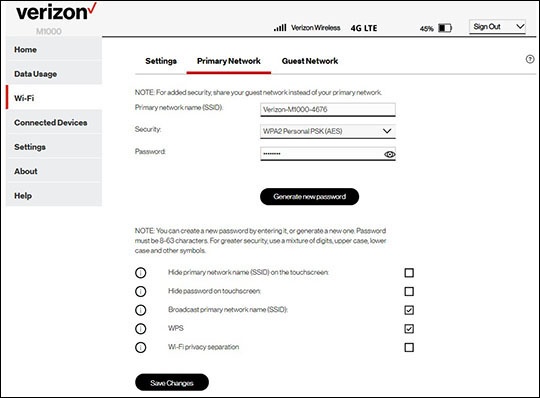
- From the Wi-Fi screen, click Primary Network or Guest Network.Primary and Guest Networks can have different passwords.
- Enter the desired Wi-Fi password into the 'Password' field.Password must be at least 8 characters.Alternatively, clickGenerate New Keyto auto-create a new password.
- ClickSave Changes(located in the lower-right).Enter the new password on your device (e.g., laptop, tablet, etc.) to reconnect to Wi-Fi.