5G Home Router Establish Wired Connection
5G Home Router
Establish Wired ConnectionConnecting via Ethernet provides a more stable and reliable connection to your 5G Home Router. It reduces lag, minimizes interference and ensures consistent speeds for activities like gaming, streaming and video conferencing.
Before you begin
This content is for 5G Home Internet. Here's info on Fios Home Internet.
5G Home Internet service is currently offered in specific areas. Here's how to check for 5G coverage availability.
Steps
- Plug one end of the Ethernet cable into an Ethernet port on the computer.
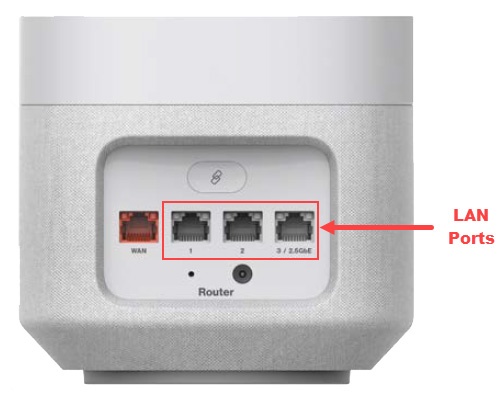
- Plug the other end of the Ethernet cable into any one of the LAN ports on the back of the router.
- If necessary, power on the router and computer.
- Ensure the LAN Port's LED is solid white.For assistance in locating the LAN Port, refer to Locate Ports, Connectors and Buttons.If testing fails, try replacing your Ethernet cable and attempt to test the connection again.