Stream TV - Install Device Software Updates
Here's how to check for and install software updates on your 1st-generation Stream TV.
The steps below apply to the original Stream TV, which can be identified by the Ethernet port on the back of the device. If you have the 2nd-generation Stream TV model, refer to Stream TV - Install Device Software Update. 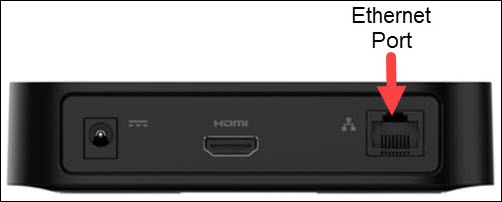
- If necessary, press theHome button
on your Stream TV remote to wake up your device.
- From the Stream TV Home screen, select theSettings menu
(upper-right).
Utilize 5-way navigation pad on the remote to highlight and the center (OK) button to select. - Navigate: .
- SelectSystem update.
- If necessary, selectCheck for update.If presented with 'Your system is up to date', press theHome buttonon the remote to exit.
- Available updates will begin automatically.If necessary, selectDownload.
- When update is complete, selectRestart Now.
For additional info, see this Stream TV support page.