Stream TV - Set Up Remote Control App
Here's how to set up the Google TV app to use your phone or tablet as a remote control for your Stream TV.
- The steps below apply to the original Stream TV, which can be identified by the Ethernet port on the back of the device. If you have the 2nd-generation Stream TV model, refer to Stream TV - Set Up Remote Control App.
- Ensure the Google™ TV app
is up to date on your device as the following steps apply to the most recent version.
- For more info about using your device with the Google TV app, visit this Google TV support page.
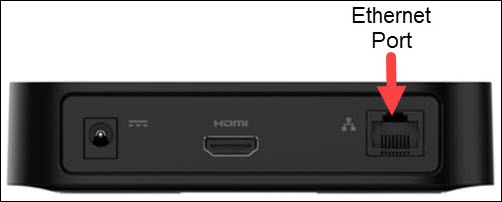
- Make sure your Stream TV is connected to the same network as your device.
- Open the Google TV app on your device.
- If prompted, review the Terms of Service and Privacy Policy then tapACCEPT & CONTINUE.
- If prompted, tap 'Allow all the time' or 'Allow only while using the app' to grant location permissions.
- Tap theRemote icon
(lower-right).
If the Remote icon doesn't appear:- Tap theAccount icon
(upper-right).
Icon will vary based on account name. - TapGoogle TV settings.
- If necessary, tapDisplay floating remote buttonto enable.Enabled when checkmark is present.
- TapSelect a device(at the top) then tap the name of your Stream TV.
- Enter the code displayed on your TV into the designated field on your device then tapPAIR.
For additional info, see this Stream TV support page.