Inseego Business Phone Connect - Activate / Set Up Device
Activate your Business Phone Connect to get started. This ensures you can make calls using a standard phone connected to the base.
Electrical equipment can cause interference. Avoid placing Business Phone Connect near other electrical equipment such as a refrigerator, television or microwave oven.
- Business Phone Connect comes with the SIM card pre-installed. If it was removed, re-insert the SIM card.
- If you're transferring your business number, you can't make or receive calls on the Business Phone Connect until the transfer process is completed. The transfer process can take 2-10 business days. Check the status of your transfer by visiting www.verizon.com/switch-to-verizon/check-status/ or by calling (877) 567-4899.
- Insert the three included AA batteries.
- If needed, attach the antenna.Business Phone Connect works without the antenna in a normal environment. You can choose to install the external antenna if you're planning to put this device where signal might be weak, like a basement.
- Connect the power adapter to the device then plug it into an AC power outlet.
- Press and hold thePower buttonuntil the device begins to power on.The power indicator turns blue when the device is turned on.
- Make sure the business phone isn't connected to a phone jack in the wall.
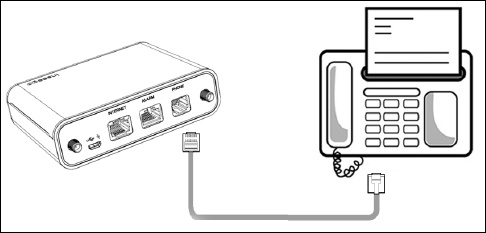
- Connect the business phone to the device.
- Place a call to start using the service.10-digit dialing is recommended, especially when dialing long distance. Dialing only 7 digits may not work as expected.