moto g stylus Insert or Remove SD / Memory Card
moto g stylus
Insert or Remove SD / Memory CardIf your moto g stylus is low on storage, use an SD card for extra space. Follow these steps to insert or remove it without losing data.
Before you begin
Ensure your moto g power 5G is powered off before you insert or remove an SD / memory card.
Steps
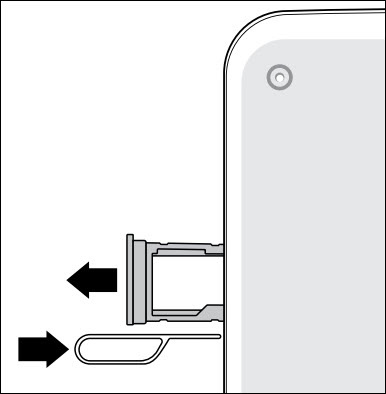
- Using the provided tool, pop out the SIM / SD card tray.
- Do one of the following:
- Insert SD / memory card: Ensure the gold contacts are facing down, then press in on the card to lock into place.
- Remove SD / memory card: If necessary, insert the tool into the hole on the back of the tray to pop out the card.
- Push the tray back into the device.