Turn App Permissions On / Off - motorola edge+
Here's how to turn permissions for installed apps on your motorola edge+ on or off.
App permissions give you the ability to customize and control which capabilities you give apps. You can pick and choose which permissions to grant apps at the time of use.
- Downloaded apps designed for Android™ only ask for permission the first time you use a feature rather than asking for permissions out of context.
- Turning off certain permissions may result in basic features no longer working as intended.
- From a Home screen, swipe up to access all apps.
- Navigate:.SettingsApps
- TapSee all 'xx' apps.
- Tap the appropriate app.
- TapPermissions.
- Tap the appropriate permission type to modify (e.g., Body Sensors, Microphone, Location, etc.).
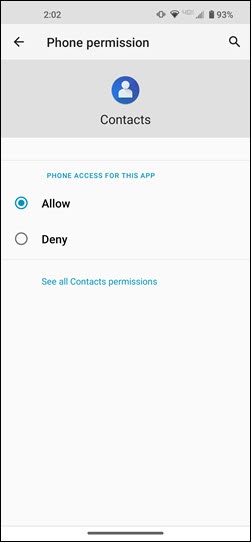
- From the selected permission, tap 'Allow' or 'Don't allow'.Options presented vary based on the permission type selected.If denying a permission, from the 'if you deny this permission...' prompt, select 'Cancel' or 'Don't allow anyway'.The image below is an example.