OnePlus 8 5G UW - Common Camera Settings
Here's info on common camera settings (e.g., flash, timer, front / rear camera, etc.) for your OnePlus 8 5G UW.
For additional info on camera settings, refer to the Camera section of the user guide.
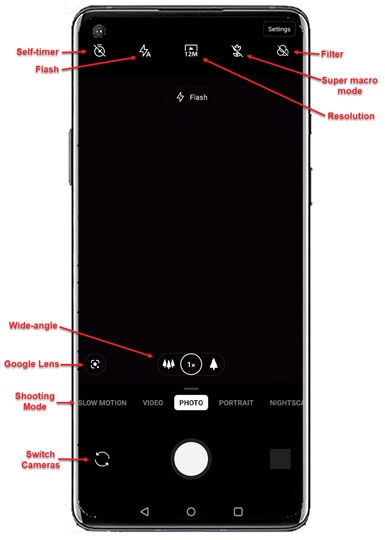
Settings
- From a Home screen, tap theCamera icon
(lower-right).
If unavailable, swipe up or down from the center of the display then tapCamera. - TapSettings.
- Configure any of the following:
- UltraShot HR SelectTap to turn on
or off
.
- Smart Scene RecognitionTap to turn on or off.
- Mirrored selfie photoTap to turn on or off.
- HistogramTap to turn on or off.
- Horizontal reference lineTap to turn on or off.
- Ultra Wide Lens CorrectionTap to turn on or off.
- Shot on OnePlus watermarkTap to turn on or off.
- Shutter soundTap to turn on or off.
- Store location dataTap to turn on or off.
Aspect Ratio
- From a Home screen, tap theCamera iconIf unavailable, swipe up or down from the center of the display then tapCamera.
- TapSettings.
- Tap Aspect ratio.
- Select an option:
- 4:3
- Full
- 1:1
Video Resolution
- From a Home screen, tap theCamera iconIf unavailable, swipe up or down from the center of the display then tapCamera.
- TapSettings.
- TapVideo resolution.
- Select an option for video:
- 1080P 30FPS
- 1080P 60FPS
- 4K 30FPS
- 4K 30FPS
- 4K CINE 30FPS
- 4K CINE 60FPS
- Select an option for Slow motion:
- 720P 480FPS
- 1080P 240FPS
Custom modes
Customize modes that appear on camera screen.
- From a Home screen, tap theCamera iconIf unavailable, swipe up or down from the center of the display then tapCamera.
- TapSettings.
- TapCustom modes.
- Select your preferred modes (e.g Time-lapse, Panorama, etc.).
Grid
- From a Home screen, tap theCamera iconIf unavailable, swipe up or down from the center of the display then tapCamera.
- TapSettings.
- TapGrid.
- Select an option:
- None
- 3x3
- 4x4
- Golden ration
Flash
- From a Home screen, tap theCamera iconIf unavailable, swipe up or down from the center of the display then tapCamera.
- Tap theFlash icon
.
- Select an option:
- On
- Off
- Auto
Self-timer
- From a Home screen, tap theCamera iconIf unavailable, swipe up or down from the center of the display then tapCamera.
- Tap theSelf-timer icon
.
- Select an option:
- Off
- 3 secs
- 5 secs
- 10 secs
Camera Filters
- From a Home screen, tap theCamera iconIf unavailable, swipe up or down from the center of the display then tapCamera.
- Tap theCamera filters icon
.
- Swipe left to choose a preset effect (e.g., Matte, Vivid, B&W, etc.).
Wide Angle
- From a Home screen, tap theCamera iconIf unavailable, swipe up or down from the center of the display then tapCamera.
- Tap theWide angle icon
to change between Ultra wide angle and Wide angle.
Camera Mode
- From a Home screen, tap theCamera iconIf unavailable, swipe up or down from the center of the display then tapCamera.
- To change the camera mode, swipe left or right to select an option:
- Time-LapseRecord videos at a high frame.
- PanoramaTap the Camera button then pan slowly in one direction.
- Slow motionCaptures video in slow motion
- VideoCapture video.
- PhotoCapture a picture.
- PortraitCapture a photo with a depth effect.
- NightscapeCapture a photo at night.
- ProManually adjust the ISO sensitivity, exposure value, white balance, and color tone.
Switch Cameras
- From a Home screen, tap theCamera iconIf unavailable, swipe up or down from the center of the display then tapCamera.
- Tap theCamera Facing icon
to switch between rear and front-facing camera.