LTE Network Extender Activate / Set Up Device
LTE Network Extender
Activate / Set Up DeviceActivate your LTE Network Extender to get started. This enhances your LTE coverage using your existing internet service provider's connection.
Before you begin
Initial Network Extender startup can take 30-60 minutes. If the Power / Status LED indicator is still blinking after 1 hour, relocate the GPS antenna to receive a stronger signal.
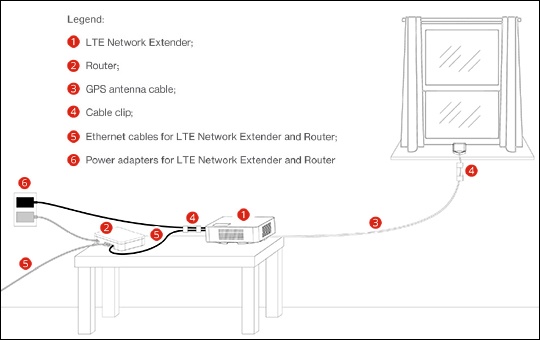
For best results, place the Network Extender in an elevated location such as on top of a bookshelf or cabinet.
Before beginning setup, turn off Wi-Fi calling on devices that connect to the Network Extender.
Steps
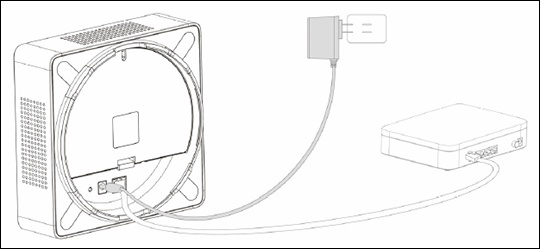
- Use the provided Ethernet cable to connect the Network Extender LAN port to an available LAN / Ethernet port on the router or modem.Ensure the router supports DHCP and VPN. Refer to the manufacturer's info for compatibility.
- Connect the power supply to the Network Extender then plug the power adapter into an available power outlet.The use of a surge protector is recommended.It's recommended to use the Network Extender upright; however, it can also function when lying flat.
- View the device display to determine the Network Extender status.Ensure the Power / Status LED indicator is blinking white. If the Power LED is solid red, this indicates a hardware issue.
- Ensure the final Network Extender status is 'Active Service'.Press the button to the right of the display to view more Device Display and Status info.
- Reference the device display chart for icon identification and check the following indicator lights:
- GPS Indicator: Shows GPS acquisition status and the number of GPS satellites currently tracked. Refer to View GPS Status to view GPS satellite info from within the Network Extender admin page.
- Connected Devices: Shows the number of 4G devices connected to the Network Extender.
- Ensure your phones are connected to the Network Extender by placing a test call to#48.When connected, an announcement plays advising the caller that they are under Network Extender coverage.The device may display a visual indicator icon in the Status Bar.